Genymotion Cloud (AWS-GCP)

Genymotion Cloud, Genymotion Cloud (AWS-GCP)

Genymotion now available on Alibaba Cloud

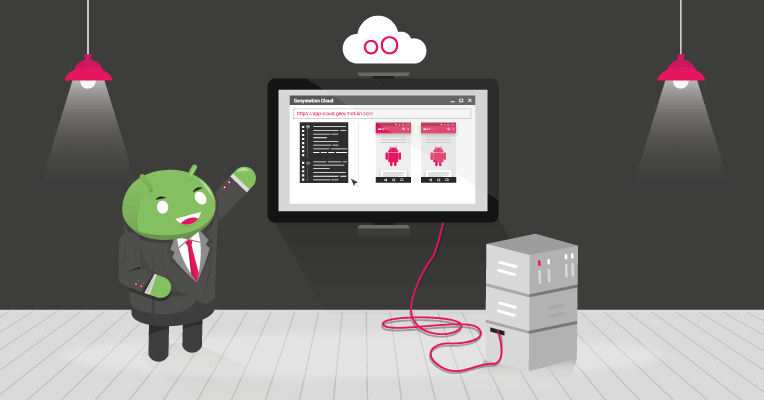
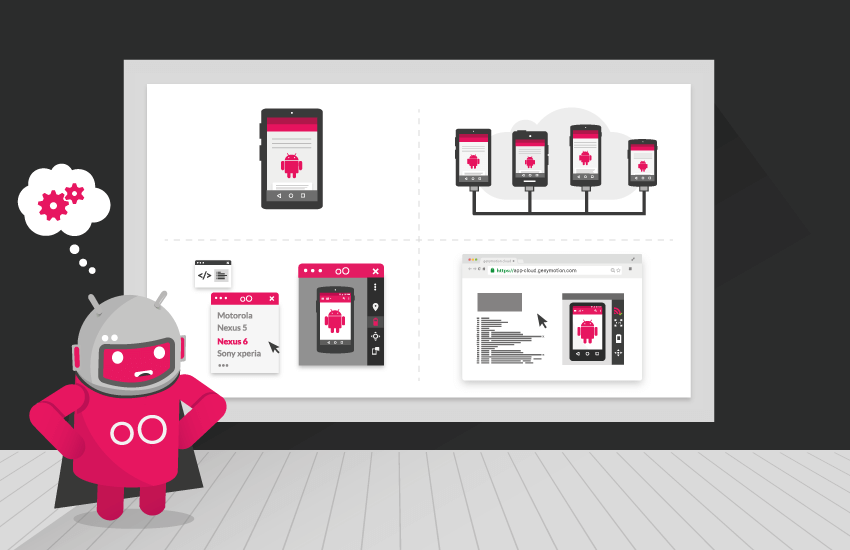
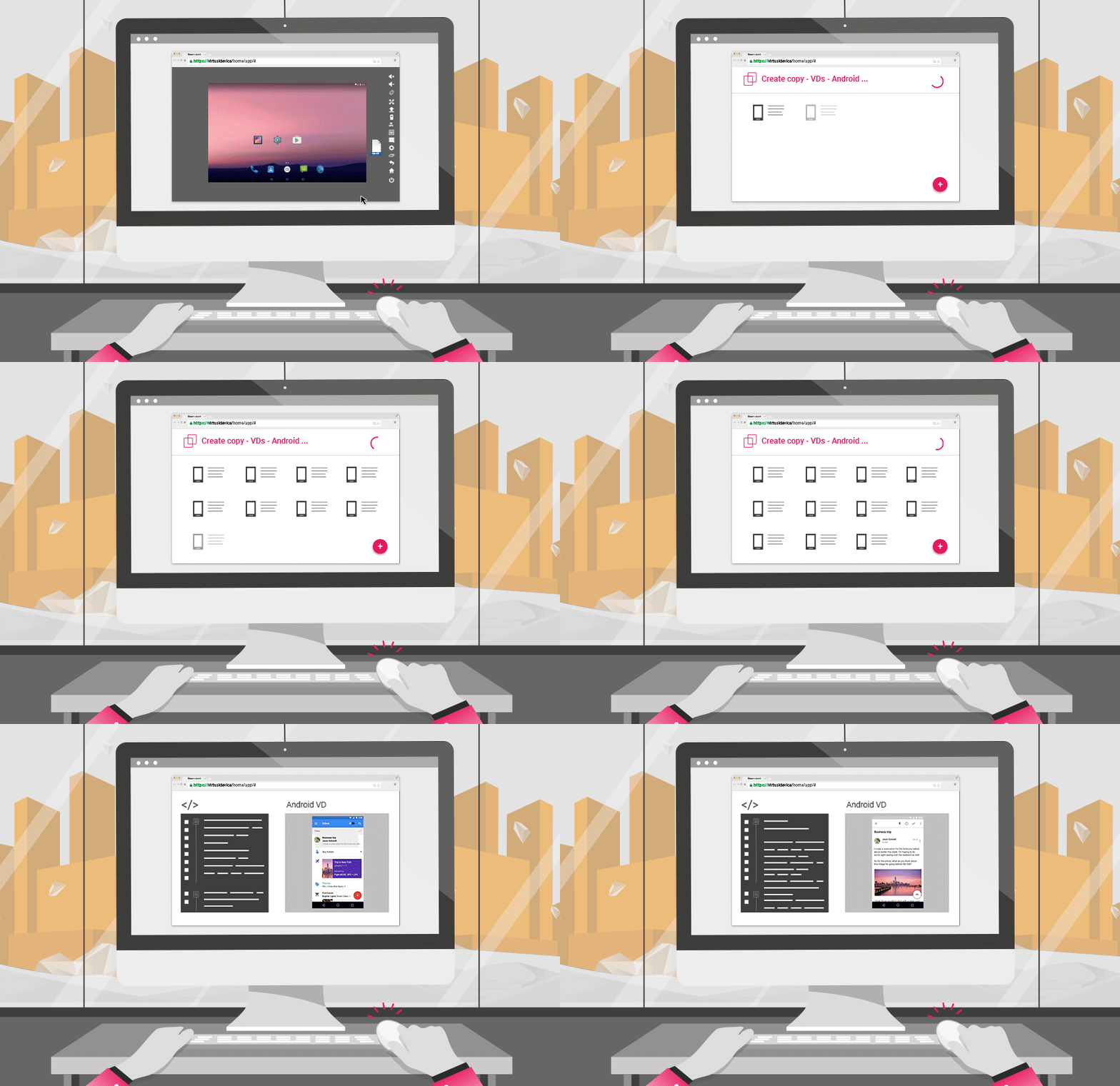
Our “on demand” offer of Genymotion Cloud was already available on Amazon Web Services and Google Cloud Platform (GCP). Now, to address the needs of even more users throughout the globe, we have made it accessible on Alibaba Cloud! Genymotion Cloud is now accessible on Alibaba Cloud   Ever thought of a world where you could go to a web portal, and in few clicks, spawn as many Android virtual devices in your browser, instantly, for a cost as low as $ 0.5 per hour? That’s Genymotion Cloud! It’s no surprise why more and more developers and QAs use it every day to build, test, deliver and run high quality apps. Our cloud-based emulators were so far only available on Amazon Web Services and Google Cloud Platform. But we’ve worked hard to publish it on Alibaba Cloud. Now, teams with operations in Asia, or anyone with an existing infrastructure on Alibaba Cloud will be able to connect their systems to our Android devices without having to combine multiple platforms. Access Genymotion Cloud on Alibaba Cloud     As a reminder, Genymotion Cloud addresses different use cases (such as functional & performance monitoring, security testing, advertising, etc.) but one of the most important is that it allows to automate your tests on multiple virtual Android devices in parallel and at a very large scale, thus contributing to reduce your test lifecycle! It includes the features below: – Real-time in-browser streaming display – Compatibility with Google Play Services – Sensors (GPS, Accelerometer, Battery, Disk, Network, Calls & Texts) – Several Android versions (from Lollipop to Nougat) – Java API – Webcam as a Camera – Sound Support – GPU or Soft rendering – Compatibility with SSH and ADB – Kiosked application As usual, it’s provided for Android Lollipop, Marshmallow, Nougat, and Oreo. Choose your flavor!   Android 5.1 Android 6.0 Android 7.0 Android 8.0 As usual, do not hesitate to give us feedback on Twitter!

Genymotion Cloud (AWS-GCP), Genymotion Releases

Android 8.0 Oreo – Now available on GCP & AWS

May the Fourth be with you! You’ve been waiting for it… Android 8.0 Oreo is finally landing to Cloud PaaS marketplaces ? ! Choose your platform! It is available on Google Cloud Platform and on Amazon Web Services, along with our Lollipop, Marshmallow and Nougat AMIs. What’s different for testing? You’ll be able to get the most of many new features shipping now on Pixel, Nexus and many other Android devices. These includes: • Picture-in-Picture mode • Notification channels • Notification badges • Autofill framework • Downloadable fonts and emojis • Fonts in XML • Autosizing TextView • Adaptive icons And much more! Enjoy! We’re working hard to bring you the best but sometimes things can go wrong. If you’re having troubles, please contact our support team.

Genymotion Cloud, Genymotion Cloud (AWS-GCP)

Genymotion Cloud (AWS-GCP)* 5.0: better performances and the launch on Google Cloud Platform!

*Genymotion on Demand has been renamed Genymotion Cloud. Our “on demand” Genymotion Cloud offer already accessible on Amazon Web Services, is now also available on Google Cloud Platform (GCP). And since good news never come alone, we managed to improve by up to 4 the performance thanks to some fixes. Enjoy! Genymotion Cloud is now accessible on Google Cloud Platform (GCP) As we encounter a real success on AWS, reaching the 1M hours of use, it was obvious to also release Genymotion Cloud on GCP in order to address the needs of developers and testers who use this cloud provider for their infrastructure! You can now enjoy cloud-based Android emulators with a per-second billing system to build, test, deliver and run high quality apps! Access Genymotion Cloud on GCP   As a reminder, Genymotion Cloud addresses different use cases (such as functional & performance monitoring, security testing, advertising, etc.) but one of the most important is that it allows to automate your tests on multiple virtual Android devices in parallel and at a very large scale, thus contributing to reduce your test lifecycle! It includes the features below: – Real-time in-browser streaming display – Compatibility with Google Play Services – Sensors (GPS, Accelerometer, Battery, Disk, Network, Calls & Texts) – Several Android versions (from Lollipop to Nougat) – Java API – Webcam as a Camera – Sound Support – GPU or Soft rendering – Compatibility with SSH and ADB – Kiosked application The product is already available on Google Cloud Launcher: Genymotion Cloud on GCP Android 5.1 (lollipop)     Genymotion Cloud on GCP Android 6.0 (marshmallow)    Genymotion Cloud on GCP Android 7.0 (nougat)   Enjoy better performances! – We’ve improved graphic performances by up to 4 compared to older versions and you can also access to GRID instances, perfect for apps with intense graphic UI! – We have added a screencast option on our capture widget so that you can record videos. – And finally, we have been able to make the Opens GApps installation easier and fixed some bugs. You’ll find more details in our release notes. Access Genymotion Cloud on GCP           Access Genymotion Cloud on AWS

Android Development, Genymotion, Genymotion Cloud, Genymotion Cloud (AWS-GCP)

Access internal web services from Android devices running in the cloud using adb reverse

It can be pretty common for your project to have some security and confidentiality problematics?. In some cases, your application may need to access an internal web service: It is a private business application accessing confidential internal information. It is an application accessing some web services currently under development and those services must remain private until finished.   Accessing those private backends while automating your tests in the cloud can be tricky. You could do it with a VPN, but it can be cumbersome. Adb reverse is another solution, easier to set up. Luckily for you, we managed to make it work with Genymotion Cloud ?. Let’s dig in and see how it works! In this article, we study the case of an app running automated tests from Genymotion Cloud, but accessing web services running on a private network.   TL;DR 1. On your CI server, run a local proxy (such as Squid, running on port 3128). 2. Start a Genymotion Cloud device using the gmsaas CLI: uuid=$(gmsaas instances start 143eb44a-1d3a-4f27-bcac-3c40124e2836 pixel3) gmsaas instances adbconnect $uuid This gives you access to the device through ADB. 3. Configure the proxy settings in the device using ADB: adb shell settings put global http_proxy localhost:3333 4. Bind your local proxy to the device proxy configuration using command: adb reverse tcp:3333 tcp:3128 5. Make sure your app handles Proxy System Settings. 6. Run your tests as usual. You can also go further by using different URLs depending on the build type… Everything is explained below ? Let’s start with a diagram of the situation: You can see a Genymotion Cloud device located on our datacenter launched by a continuous integration server running on your internal network. This is done through gmsaas,  the Genymotion command line tool. An ADB tunnel is created between the server and the virtual device, allowing to use `adb` on the device, as if it was running locally. On the other hand, your internal web service is not exposed and therefore cannot be accessed from the virtual device. How to overcome this, without exposing your internal web service to the Internet? ADB reverse to the rescue! ?   Accessing the infrastructure Run a local proxy on your CI server This piece of software is aimed to expose your internal web service located in your infrastructure to a local network connection occurring on your CI server. ADB is running on your CI server, and it is the only one that will connect to the proxy. You must run a single proxy server for all the devices needing access to your internal web service. There are plenty of ways to start a proxy on your server. Here is for example how to launch a Squid proxy using docker : First, make sure folder /opt/squid/cache is created. Also, you must set up a configuration file /opt/squid/squid.conf. You can use this simple configuration: # Squid proxy port declaration http_port 3128 # Allow local connections, including Docker’s host acl localnet src 10.0.0.0/8     # RFC1918 possible internal network acl localnet src 172.16.0.0/12  # RFC1918 possible internal network acl localnet src 192.168.0.0/16 # RFC1918 possible internal network acl localnet src fc00::/7       # RFC 4193 local private network range acl localnet src fe80::/10      # RFC 4291 link-local (directly plugged) machines http_access allow localnet http_access allow localhost http_access deny all Then run the following docker command: docker run –name squid \ –publish 127.0.0.1:3128:3128 \ –volume /opt/squid/squid.conf:/etc/squid3/squid.conf \ –volume /opt/squid/cache:/var/spool/squid3 \ –volume /opt/squid/cache:/var/log/squid3 \ sameersbn/squid:3.3.8-12   Start the virtual device Before each test run, the CI server starts one or several cloud devices using gmsaas. Start a device using: uuid=$(gmsaas instances start 143eb44a-1d3a-4f27-bcac-3c40124e2836 pixel3) This command starts a new Pie virtual device on Genymotion Cloud. Once this command is finished, connect to the device with adb : gmsaas instances adbconnect $uuid, you can interact with it using `adb` commands, through the ADB tunnel. Configure the device to use a proxy Today, Genymotion Cloud virtual devices are disposable. It means they are deleted when you stop them and all their configuration and files are lost. You must configure them each time you start them. You can set the proxy configuration from the command line : adb shell settings put global http_proxy localhost:3333 Note: If you need a more precise configuration (configuring the proxy exclusion list for example), we recommend configuring a Genymotion Cloud virtual device through the Wifi Settings application and to share it on Genymotion Cloud with all your team as explained in the documentation. Bind the device’s configuration to your CI server’s proxy Now on one side, we have a Squid proxy running on the CI server bound to local port 3128 and on the other side, we have a device looking for a proxy server on its own local port 3333. ADB allows us to bind those two remote ports thanks to the `adb reverse` command. Run command: adb reverse tcp:3333 tcp:3128 This command redirects all the network traffic inside the device going to localhost:3333 to your computer localhost:3128. Once everything is set up, here is how your infrastructure behaves: All the network traffic of the cloud device goes through the ADBtunnel, arrives to the ADB server running on your CI computer and is redirected to the Squid proxy, exposing your internal web service to the remote virtual device. Your internal web service is then accessible from your app, as soon as you make sure it observes the proxy system settings. Note: The `adb reverse` command is supported on Android since Android 5.0 only, so make sure you select the right version.   Use the proxy system settings in your app You must be careful that your HTTP client observes the proxy settings that have been set up. If you are using OKHttp library, this is handled directly by the client, there is nothing to do from your part. If not using OKHttp library, you must set the proxy from your app source code, depending on your HTTP client.   Conclusion You did it! A simple setup where you decide to

Genymotion Cloud (AWS-GCP), Tutorials

Tutorial | Automate Genymotion On-Demand (AWS EC2 Android instances)

Written by Ellinor Kwok – Product Marketing & Pre-Sales at Genymobile Intelligently provisioning and deprovisioning entire workloads on demand is challenging in cloud computing. Being able to automate these as much as possible on Virtualized Operating Systems – on cloud platforms such as Amazon EC2 (AWS) – helps you achieve this. Virtualized Operating Systems available are Linux, Windows… But since the rise of mobile applications, no one has been able yet to offer a professional cloud solution that could automate cloning and scaling a virtualized Android Operating System. Genymotion on-Demand is exactly that, a fully functional Android Operating System available on Amazon EC2. You will be able to configure your Android instance once and – thanks to Amazon Web Services tools – automate the roll out on the fly as needed. Managing the load-balancing will be quite easy and straightforward. That is what we will see in this tutorial which fits many use cases such as apps benchmarking, online advertising of mobile applications, mobile application security threat detection. Typical workflow   Set up   You first need to prepare your Genymotion Android EC2 instance by installing your application and any application dependencies needed (for example Google Play Services, modifying settings…). This will be the pre-configured virtual device that you will use for all the automation process. Configure everything you need that won’t change in your instance so you do it only once. Clone   Once you are done with the configuration, you need to clone the instance by creating a snapshot of the device. Use Then you will be able to automate the creation and start new already pre-configured instances. In this blog post we will focus on how you can automate the use of an already pre-configured instance. Let’s see how to automate an instance lifecycle using AWS APIs   Amazon Web Services provide APIs to help you automate the lifecycle of an instance. You can choose your favorite programming language (Python, Java, Ruby and more…). There are SDKs for that. We will focus on using AWS Command Line Interface (CLI). Here are the prerequisites: • An AWS account with your Access Key ID and Secret Access Key and key pair (key.pem) to access to the instance • AWS CLI tool installed   Use aws configure to quickly configure it. It will prompt you to fill your Access Key ID, Secret Access Key, your default region and output format. Please refer to the quick configuration guide for more information. Use AWS APIs to handle the lifecycle of instances   In this section, I will list some useful commands you’ll need for automation that we will later use in the demonstration. 1. Create a snapshot of an instance aws ec2 create-image –instance-id <instance_id> –name <name> • <instance_id> is the id of the pre-configured instance • <name> is the name of the snapshot   2. Create an instance from a pre-configured AMI aws ec2 run-instances –image-id <ami_id> –count <number> –instance-type <instance_type> –key-name <key_name> –security-groups <security_group> • <ami_id> is the AMI id of the snapshot instance • <number> is the number of instances you want to create • <instance_type> is the type of instance e.g t2.medium • <key_name> is the name of the key pair • <security_group> is the name of the security group   MORE OPTIONS 3. Start an instance aws ec2 start-instances –instance-ids <instance_id> • <instance_id> is the instance id you want to start   4. Get information from instances aws ec2 describe-instances –instance-ids <instance_id> • This command is useful to get the instance IP address once started   5. Stop an instance aws ec2 stop-instances –instance-ids <instance_id> • <instance_id> is the instance id you want to stop Here’s what it gives put into practice   Now that you are familiar with the main AWS commands, let’s illustrate a use case we identified: security. Let’s code a script that will automate the creation of a pre-configured instance and install a third-party application that would be scanned for threats. Configure Genymotion On-Demand   You need to first start an instance. Please refer to the product access page on how to do it. Once your instance is started, you need to configure it. For example, you would need to install Google Play Services, change or disable the authentication, lock an application… Please refer to Genymotion On Demand’s tutorials. You can connect to the device through SSH to change those settings. You need to enable adb as well as we will use it to install third-party applications. Clone the Android instance   Once you are all set with the configuration, you need to clone the instance. Once the snapshot is created, you will get a new Amazon Machine Image (AMI). There are two ways : 1. From the EC2 console By going to Actions → Image → Create Image when selecting your pre-configured instance. 2. Using AWS APIs : For the example, we consider that i-1234567890abcdef0 is the instance we want to clone. And we will name the cloned instance genymotion_snapshot aws ec2 create-image –instance-id i-1234567890abcdef0 –name genymotion_snapshot You get the AMI ID as output : { “ImageId”: “ami-1a2b3c4d” } Keep this as you will use it to create the instance. Usage (i.e. deploy massively)   We will create a t2.medium instance from the cloned Android AMI and get its instance ID instance_id=$(aws ec2 run-instances –image-id ami-1a2b3c4d –count 1 –instance-type t2.medium –key-name keyname –security-groups securitygroup –query “Instances[].InstanceId” –output text) If you want to create more than one instance at a time, you can do it by changing the value of –count When the instance is created, it is being automatically started. We need to check that it is in running state before being able to connect to it with adb. state=$(aws ec2 describe-instances –instance-ids $instance_id –query “Reservations[].Instances[].State.Code” –output text) #wait for the device to start, check every second device state while [ $state -ne 16 ]; do state=$(aws ec2 describe-instances –instance-ids $instance_id –query “Reservations[].Instances[].State.Code” –output text) echo -n ‘.’ sleep 1 done Once the instance is started, we get its IP and connect to it with adb ip=$(aws ec2

Scroll to Top

Select Product Portal

SaaS Platform

Access to our SaaS solution and use virtual machines in the cloud on any web browsers.

Or

Or

Desktop Platform

Access to manage your Genymotion Desktop licenses, your invoices and account information.

How to get a quote for multiple Business Licenses?

  1. You need a Genymotion Desktop account. If you haven’t one yet, you can create it here.
  2. After creation and activation, or if you already have an account, follow this link.
  3. Add the number of desired licenses to your shopping cart and click “Continue to Billing”
  4. Add a shipping address, or select one if you already created one.
  5.  In the next page, click “Get a quote”:
    Payment details
  6. A quote will be automatically generated in PDF format.

Genymotion Device Image for Cloud providers
- Private Offer -

Genymotion Self-hosted (on-premises)
- Contact Us -

Genymotion SaaS
- Increase Maximum Simultaneous devices -

Genymotion SaaS Enterprise Plan
- Get a Quote -

Genymotion SaaS Premium Plan
- Get a Quote -

Personal Use - Free

Genymotion Desktop for personal use is not suitable for trial or POC: you will not get any assistance and some features will be disabled. If you have already selected “personal use” and wish to get a trial license, please contact our Sales at [email protected].

Technical support is not available with Genymotion Desktop free edition for personal use. For more details, please refer to Genymotion conditions of use (Personal Use).

The following features are not available in personal use mode:

Follow these steps to get Genymotion Desktop and activate personal use mode:

  1. Go to the Download page and get the latest version for your system.
  2. Follow the instructions from Genymotion Desktop quickstart guide to install Genymotion Desktop.
  3. Launch Genymotion and click CREATE to create an account. You should receive an activation email within an hour. If not, make sure to check your spam.
  4. After activating your account, return to Genymotion and log in with your credentials.
  5. Select personal use when prompted.
  6. Read Genymotion Desktop quickstart guide carefully to setup Genymotion for your needs.

Contact Sales
- Premium Plan -

Select a Cloud provider Marketplace