French Days 2026: Get 20% off Genymotion Desktop!

Illustration for 2026 French Days 20% discount on Genymotion Desktop annual licenses.

The French Days are here! To celebrate, we are offering a special discount for all Android developers, QA engineers, security researchers, individuals and so on.

From April 29 to May 6, enjoy a 20% discount on your Genymotion Desktop annual license (Business or Indie).

Whether you need to scale your app testing or develop on a high-performance Android emulator, now is the perfect time to upgrade your toolkit.

How to Benefit

Taking advantage of this limited-time offer is simple. Here is a step-by-step guide on how to apply the discount:

Step 1: Configure Your Cart

Head over to the Genymotion Desktop pricing page. Select the “Indie” or “Business” license, and add the license(s) to your shopping cart:
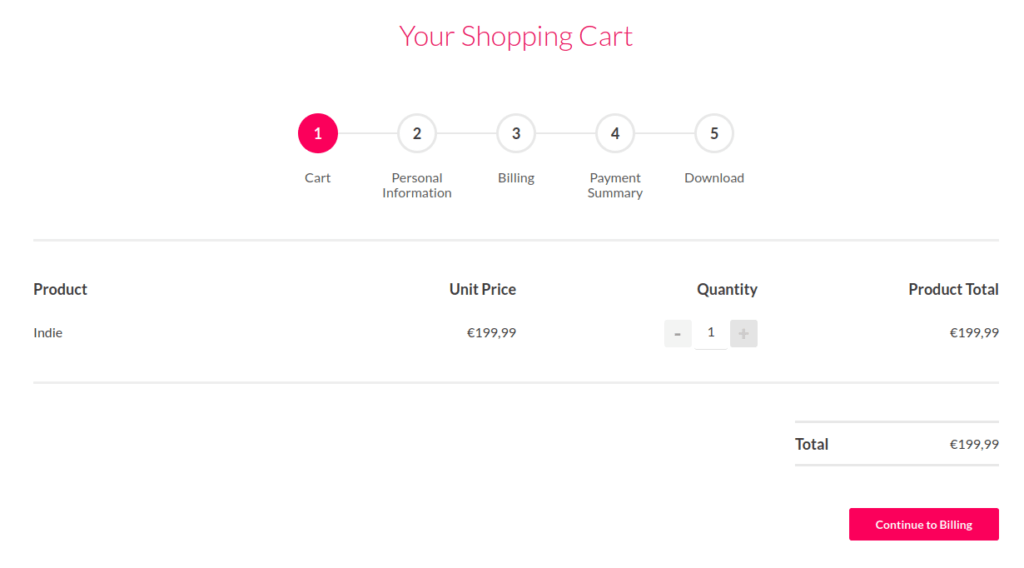
Shopping cart example for an Genymotion Desktop INDIE license.

Click “Continue to Billing” to proceed to the next step.

Step 2: Apply the Voucher Code

At checkout (“Payment Summary”), look for the “Voucher Code” or “Discount Code” text field in the order summary section.

Enter the promo code: FRENCHDAYS2026
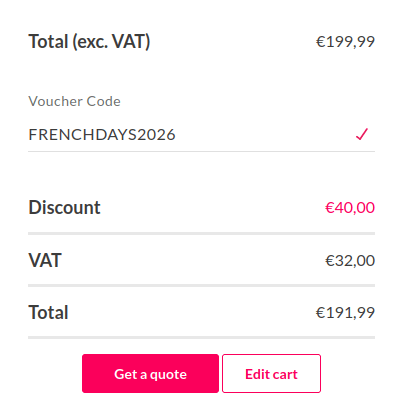
Entering the "FRENCHDAYS2026" voucher code at check out.

Finalize your payment by credit card, or PayPal and you’re done!

Offer Ends May 6th!

Don’t miss out on this opportunity:

Scroll to Top

Select Product Portal

SaaS Platform

Access to our SaaS solution and use virtual machines in the cloud on any web browsers.

Or

Or

Desktop Platform

Access to manage your Genymotion Desktop licenses, your invoices and account information.

How to get a quote for multiple Business Licenses?

  1. You need a Genymotion Desktop account. If you haven’t one yet, you can create it here.
  2. After creation and activation, or if you already have an account, follow this link.
  3. Add the number of desired licenses to your shopping cart and click “Continue to Billing”
  4. Add a shipping address, or select one if you already created one.
  5.  In the next page, click “Get a quote”:
    Payment details
  6. A quote will be automatically generated in PDF format.

Genymotion Device Image for Cloud providers
- Private Offer -

Genymotion Self-hosted (on-premises)
- Contact Us -

Genymotion SaaS
- Increase Maximum Simultaneous devices -

Genymotion SaaS Enterprise Plan
- Get a Quote -

Genymotion SaaS Premium Plan
- Get a Quote -

Personal Use - Free

Genymotion Desktop for personal use is not suitable for trial or POC: you will not get any assistance and some features will be disabled. If you have already selected “personal use” and wish to get a trial license, please contact our Sales at [email protected].

Technical support is not available with Genymotion Desktop free edition for personal use. For more details, please refer to Genymotion conditions of use (Personal Use).

The following features are not available in personal use mode:

Follow these steps to get Genymotion Desktop and activate personal use mode:

  1. Go to the Download page and get the latest version for your system.
  2. Follow the instructions from Genymotion Desktop quickstart guide to install Genymotion Desktop.
  3. Launch Genymotion and click CREATE to create an account. You should receive an activation email within an hour. If not, make sure to check your spam.
  4. After activating your account, return to Genymotion and log in with your credentials.
  5. Select personal use when prompted.
  6. Read Genymotion Desktop quickstart guide carefully to setup Genymotion for your needs.

Contact Sales
- Premium Plan -

Select a Cloud provider Marketplace




