✨ 2025 Year review

Tutorials

CircleCI, Continuous Integration, Genymotion Cloud, Tutorials

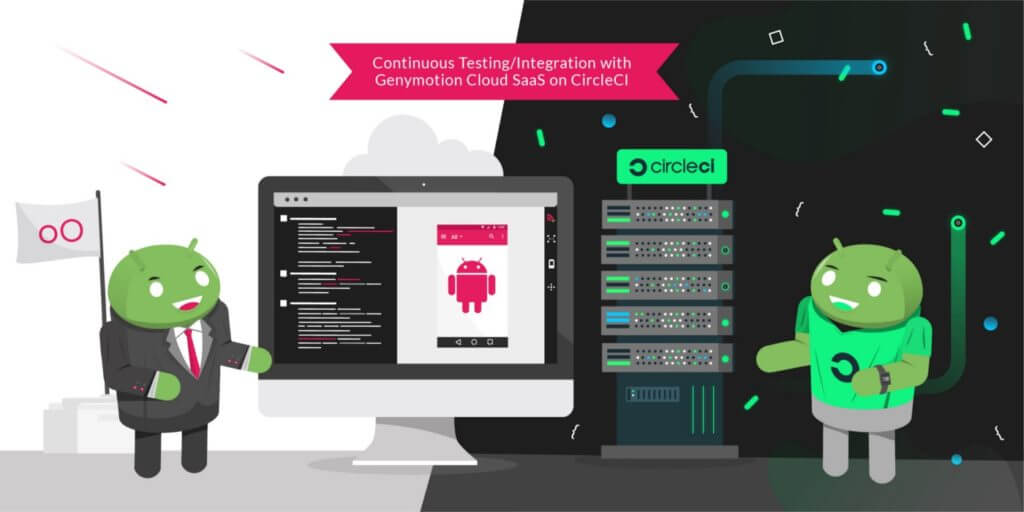
Genymotion Cloud Android Devices now available on CircleCI

We are glad to announce that Genymotion Cloud SaaS is now available to Circle CI users for continuous testing! Efficiently testing mobile apps at every stage of the application lifecycle is challenging, even more with Android fragmented market. Many companies are adopting tools to help them create, automate and orchestrate tests on mobile devices. Among them are continuous integration and deployment (CI/CD) tools. Having a CI tool isn’t enough, we also need devices to run tests on. By partnering with CircleCI, we help providing the full continuous integration workflow. Genymotion Cloud SaaS provides Android virtual devices on the Cloud with various configurations and Android versions. CircleCI is a cloud continuous integration server to help teams get faster builds, shorter feedback lifecycles and simplified pipeline maintenance. The integration of Genymotion Cloud SaaS is now available on CircleCI as an Orb, so QA engineers can now easily integrate Genymotion Cloud in their test cases on CircleCI and reuse jobs, commands and executors to run their test on chosen devices. Please check out our complete tutorial for a step-by-step description of how to run your tests on our Android virtual devices within CircleCI!

Automated Testing, Tutorials

Automated Testing 101: What is Automation Testing for Mobile (and What are the Benefits)?

Companies are always searching for ways to save money and time.  Automation  testing is a critical part of the Continuous Integration(CI) and Continuous Delivery(CD) processes of application development and incorporating a Shift Left approach with Automated Testing  is a great strategy to save money while producing a solid app.   Let’s cover some basics about Automated Testing, common terms and some of the benefits.   What is Automated Testing?   It refers to running tests in an automated fashion, instead of having test engineers execute each one manually. It saves a great deal of effort, and makes it possible to run more tests more quickly, leading to better software quality. You could also say that Automated Testing is the use of software tools (or automation code) and the power of machines to control the execution of tests, compare their outcomes, and report functions that would otherwise require manual testing activity.  Advantages of Automating Tests   Testing for mobile apps helps in identifying and significantly reducing the bugs during every stage of the lifecycle for an app’s development.  Automating tests brings additional advantages to the testing process including:  Simplifying test execution  Increasing speed of executing tests (test scripts) Increasing the amount of test coverage Improving the reliability of tests Shortening software development cycles Minimizing human interaction with testing, Eliminating boring tasks Reducing maintenance cost of testing Improving accuracy of software tests Saving time and money Developing software values Shift left process   Automated Testing Frameworks for Mobile   A test automation framework is a set of guidelines used to produce beneficial results of the automated testing activity. These guidelines may include: Common practices (test scripts) Assumptions for the desired outcome Test tools (software) and interfaces test libraries Coding standards/span>   Automation frameworks, when designed and implemented correctly, deliver frequent and stable automated test code. With a proper framework, the code is easier to maintain and often reusable. Types include:  Linear Scripting Framework: Recording and replaying test scripts in sequential (“linear”) fashion with little or no modification. Data-driven Framework: A constant source of test criteria (internal or external data) specifies the test scripts to run. Keyword-driven Framework: Tables on a spreadsheet specify the action of a test script based on a library of functions for an assigned keyword. Modular Testing Framework: Modules of an application under test are divided and tested with individual test scripts that can be combined for larger test scripts.  Hybrid Testing Framework: A combination of frameworks to leverage the strengths of each./span>   Frameworks for Mobile Automation   It is important to choose a  good mobile automation testing framework that works for your test needs  so that your test automation code is stable, maintainable and reusable. On the top of that framework, we can build our test cases. Mobile automation testing frameworks can be segregated by the operating system of the mobile device. We’re most interested in Android testing frameworks. Example Frameworks:  Appium Cucumber IU Automator 2 Espresso Robotium Our Twitter followers shared their favorites in this poll. Do you agree?  Continuous Integration Workflow   Continuous Integration (CI) as a practice that leads to significantly reduced integration problems and allows a team to develop cohesive software more rapidly (daily or even several times a day). One of the key benefits of integrating regularly is that you can detect errors quickly and locate them more easily. As each change introduced is typically small, pinpointing the specific change that introduced a defect can be done quickly. Automated tests are fundamental to this practice which leads to reduced risk, believable progress, and user feedback. Check back soon for our upcoming post on Automated Testing Pain Points and how to solve them! 

Genymotion Cloud (AWS-GCP), Tutorials

Tutorial | Automate Genymotion On-Demand (AWS EC2 Android instances)

Written by Ellinor Kwok – Product Marketing & Pre-Sales at Genymobile Intelligently provisioning and deprovisioning entire workloads on demand is challenging in cloud computing. Being able to automate these as much as possible on Virtualized Operating Systems – on cloud platforms such as Amazon EC2 (AWS) – helps you achieve this. Virtualized Operating Systems available are Linux, Windows… But since the rise of mobile applications, no one has been able yet to offer a professional cloud solution that could automate cloning and scaling a virtualized Android Operating System. Genymotion on-Demand is exactly that, a fully functional Android Operating System available on Amazon EC2. You will be able to configure your Android instance once and – thanks to Amazon Web Services tools – automate the roll out on the fly as needed. Managing the load-balancing will be quite easy and straightforward. That is what we will see in this tutorial which fits many use cases such as apps benchmarking, online advertising of mobile applications, mobile application security threat detection. Typical workflow   Set up   You first need to prepare your Genymotion Android EC2 instance by installing your application and any application dependencies needed (for example Google Play Services, modifying settings…). This will be the pre-configured virtual device that you will use for all the automation process. Configure everything you need that won’t change in your instance so you do it only once. Clone   Once you are done with the configuration, you need to clone the instance by creating a snapshot of the device. Use Then you will be able to automate the creation and start new already pre-configured instances. In this blog post we will focus on how you can automate the use of an already pre-configured instance. Let’s see how to automate an instance lifecycle using AWS APIs   Amazon Web Services provide APIs to help you automate the lifecycle of an instance. You can choose your favorite programming language (Python, Java, Ruby and more…). There are SDKs for that. We will focus on using AWS Command Line Interface (CLI). Here are the prerequisites: • An AWS account with your Access Key ID and Secret Access Key and key pair (key.pem) to access to the instance • AWS CLI tool installed   Use aws configure to quickly configure it. It will prompt you to fill your Access Key ID, Secret Access Key, your default region and output format. Please refer to the quick configuration guide for more information. Use AWS APIs to handle the lifecycle of instances   In this section, I will list some useful commands you’ll need for automation that we will later use in the demonstration. 1. Create a snapshot of an instance aws ec2 create-image –instance-id <instance_id> –name <name> • <instance_id> is the id of the pre-configured instance • <name> is the name of the snapshot   2. Create an instance from a pre-configured AMI aws ec2 run-instances –image-id <ami_id> –count <number> –instance-type <instance_type> –key-name <key_name> –security-groups <security_group> • <ami_id> is the AMI id of the snapshot instance • <number> is the number of instances you want to create • <instance_type> is the type of instance e.g t2.medium • <key_name> is the name of the key pair • <security_group> is the name of the security group   MORE OPTIONS 3. Start an instance aws ec2 start-instances –instance-ids <instance_id> • <instance_id> is the instance id you want to start   4. Get information from instances aws ec2 describe-instances –instance-ids <instance_id> • This command is useful to get the instance IP address once started   5. Stop an instance aws ec2 stop-instances –instance-ids <instance_id> • <instance_id> is the instance id you want to stop Here’s what it gives put into practice   Now that you are familiar with the main AWS commands, let’s illustrate a use case we identified: security. Let’s code a script that will automate the creation of a pre-configured instance and install a third-party application that would be scanned for threats. Configure Genymotion On-Demand   You need to first start an instance. Please refer to the product access page on how to do it. Once your instance is started, you need to configure it. For example, you would need to install Google Play Services, change or disable the authentication, lock an application… Please refer to Genymotion On Demand’s tutorials. You can connect to the device through SSH to change those settings. You need to enable adb as well as we will use it to install third-party applications. Clone the Android instance   Once you are all set with the configuration, you need to clone the instance. Once the snapshot is created, you will get a new Amazon Machine Image (AMI). There are two ways : 1. From the EC2 console By going to Actions → Image → Create Image when selecting your pre-configured instance. 2. Using AWS APIs : For the example, we consider that i-1234567890abcdef0 is the instance we want to clone. And we will name the cloned instance genymotion_snapshot aws ec2 create-image –instance-id i-1234567890abcdef0 –name genymotion_snapshot You get the AMI ID as output : { “ImageId”: “ami-1a2b3c4d” } Keep this as you will use it to create the instance. Usage (i.e. deploy massively)   We will create a t2.medium instance from the cloned Android AMI and get its instance ID instance_id=$(aws ec2 run-instances –image-id ami-1a2b3c4d –count 1 –instance-type t2.medium –key-name keyname –security-groups securitygroup –query “Instances[].InstanceId” –output text) If you want to create more than one instance at a time, you can do it by changing the value of –count When the instance is created, it is being automatically started. We need to check that it is in running state before being able to connect to it with adb. state=$(aws ec2 describe-instances –instance-ids $instance_id –query “Reservations[].Instances[].State.Code” –output text) #wait for the device to start, check every second device state while [ $state -ne 16 ]; do state=$(aws ec2 describe-instances –instance-ids $instance_id –query “Reservations[].Instances[].State.Code” –output text) echo -n ‘.’ sleep 1 done Once the instance is started, we get its IP and connect to it with adb ip=$(aws ec2

Scroll to Top

Select Product Portal

SaaS Platform

Access to our SaaS solution and use virtual machines in the cloud on any web browsers.

Or

Or

Desktop Platform

Access to manage your Genymotion Desktop licenses, your invoices and account information.

How to get a quote for multiple Business Licenses?

  1. You need a Genymotion Desktop account. If you haven’t one yet, you can create it here.
  2. After creation and activation, or if you already have an account, follow this link.
  3. Add the number of desired licenses to your shopping cart and click “Continue to Billing”
  4. Add a shipping address, or select one if you already created one.
  5.  In the next page, click “Get a quote”:
    Payment details
  6. A quote will be automatically generated in PDF format.

Genymotion Device Image for Cloud providers
- Private Offer -

Genymotion Device On-premise
- Contact Us -

Genymotion SaaS
- Increase Maximum Simultaneous devices -

Genymotion SaaS Enterprise Plan
- Get a Quote -

Genymotion SaaS Premium Plan
- Get a Quote -

Personal Use - Free

Genymotion Desktop for personal use is not suitable for trial or POC: you will not get any assistance and some features will be disabled. If you have already selected “personal use” and wish to get a trial license, please contact our Sales at [email protected].

Technical support is not available with Genymotion Desktop free edition for personal use. For more details, please refer to Genymotion conditions of use (Personal Use).

The following features are not available in personal use mode:

Follow these steps to get Genymotion Desktop and activate personal use mode:

  1. Go to the Download page and get the latest version for your system.
  2. Follow the instructions from Genymotion Desktop quickstart guide to install Genymotion Desktop.
  3. Launch Genymotion and click CREATE to create an account. You should receive an activation email within an hour. If not, make sure to check your spam.
  4. After activating your account, return to Genymotion and log in with your credentials.
  5. Select personal use when prompted.
  6. Read Genymotion Desktop quickstart guide carefully to setup Genymotion for your needs.

Indie Plan Application Form

This plan is strictly reserved to individual workers (freelancers, self-employed).

Contact Sales
- Premium Plan -

Educational Plan Application Form

The Educational plan is restricted to:

  • schools, teachers or students who wish to use Genymotion Desktop for tuition
  • students who wish to use Genymotion Desktop for a school project

It is subject to valid proof (student card, teacher card, etc.)

Select a Cloud provider Marketplace