Genymotion Desktop

Genymotion Desktop, Genymotion Releases

Genymotion Desktop 3.2.0 is available!

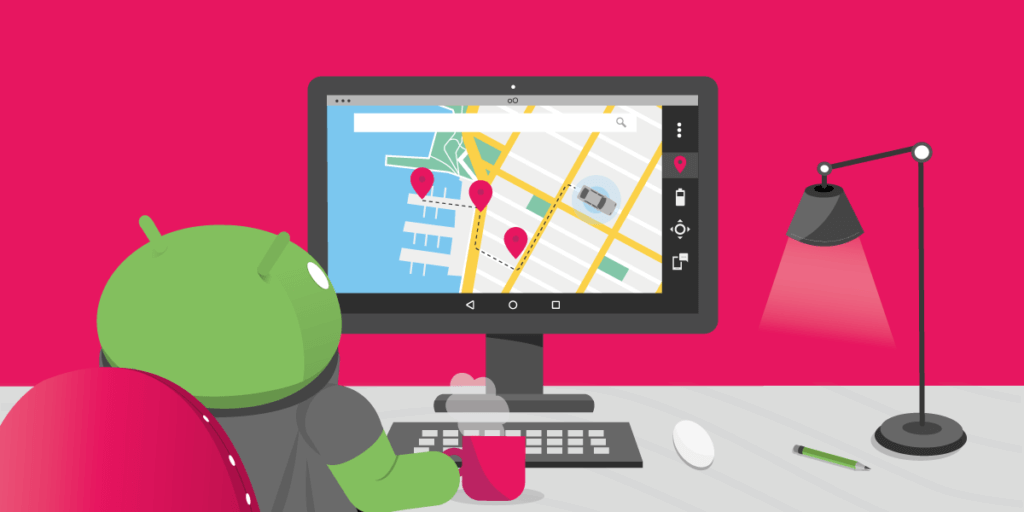
We are pleased to announce the release of Genymotion Desktop 3.2.0, our Android emulator for Windows, macOS and Linux. This article presents the most notable changes for this release. GPX replay Genymotion Desktop has been able to simulate GPS coordinates for a long time, but manually moving your virtual device around the world gets tedious really fast, and usually does not result in realistic movements. With Genymotion Desktop 3.2.0 you can now replay real-life movements recorded in GPX files. This new feature makes it easier for you to debug your GPS-enabled application, or whatever idea you come up with which requires simulating the realistic movement of an Android device (we’d love to hear what you are using this feature for, by the way!) Recorded GPX traces can be long to replay, but Genymotion Desktop GPS widget comes with two handy features to go right to the interesting parts of a trace: First you have adjustable replay speed, from 1x to 5x. Second, a slider lets you fast-forward or rewind back to the portion of the trace you care about. OpenGL ES 3.0 We now support OpenGL ES 3.0, so you can run more games or GPU-intensive applications! Real multitouch support If you have a touch screen, you can now send proper multitouch events, including gestures like pinch to zoom. You can now get creative with drawing apps: Material facelift The Player user interface has received a Material facelift, giving it a more modern appearance. We hope you like it! OpenGL accelerated GPS map widget The GPS widget map now uses OpenGL for rendering: maps are now crisper, zoom is smoother, and texts are always correctly oriented. Simplified tool integrations Genymotion Desktop comes with gmtool, a powerful device management command-line tool, but until now all its command required a license to use it, making it a no-go for tool integrations. This means that to integrate Genymotion Desktop into your tool, you had to parse VirtualBox command-line tool output, filter out non-Genymotion virtual machines, and use internal commands to start a device. That is tedious and could prove unreliable. With Desktop 3.2.0, we lifted some of the restrictions on gmtool, making it possible to use it to list, start and stop virtual devices, even for users without a license. This should make it simpler for everyone to integrate Genymotion Desktop in your favorite tool. By the way, did you know that there are Genymotion Desktop plugins for Android Studio, Eclipse and VS Code? There is more You can find all those changes and a few others in Genymotion Desktop 3.2.0 release notes. Get it Download Genymotion Desktop 3.2.0 now!


Continuous Integration, Genymotion, Gradle Plugin, Java API

Continuous Integration with Genymotion

  What is the main goal of Continuous Integration? CI (Continuous Integration) prevents integration problems by pushing smaller code changes more often. CI is meant to be used along with automated unit tests. That’s where Genymotion comes into play One of Genymotion’s key features is its Gradle Plugin which allows you to combine the Gradle build system with Genymotion. This allows you to declare the virtual devices you want to start prior to testing. How does it work? To use Genymotion on a continuous integration server, you automate the launch via the Gradle plugin. This tool will simply create, configure and launch devices automatically, before your tests run. Unit tests are run on an integration server like Jenkins which connects to Genymotion, installs the apps inside the virtual devices and launches tests using Genymotion Virtual Machines. For example, one client, has a server instance, running specific tests with sensors, telephony and SMS/GPS with an undetermined number of Virtual Machines. Their need to have multiple and varied custom configurations for testing on demand is met by Genymotion. Bottom line Our Android Emulator Genymotion can be used to integrate elements of your testing scheme and validate your code. You can reset and reuse virtual machines easily and rapidly. With components such as Gradle, Android Studio & Eclipse plugins, command line tools and a Java API, Genymotion stands out as a powerful and robust solution for testing and integration. Watch our webinar and get more practical tips

Scroll to Top

Select Product Portal

SaaS Platform

Access to our SaaS solution and use virtual machines in the cloud on any web browsers.

Or

Or

Desktop Platform

Access to manage your Genymotion Desktop licenses, your invoices and account information.

How to get a quote for multiple Business Licenses?

  1. You need a Genymotion Desktop account. If you haven’t one yet, you can create it here.
  2. After creation and activation, or if you already have an account, follow this link.
  3. Add the number of desired licenses to your shopping cart and click “Continue to Billing”
  4. Add a shipping address, or select one if you already created one.
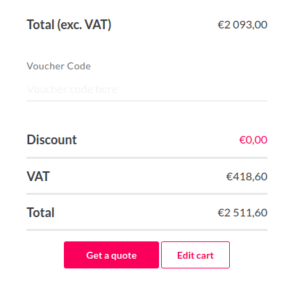
  5.  In the next page, click “Get a quote”:
    Payment details
  6. A quote will be automatically generated in PDF format.

Genymotion Device Image for Cloud providers
- Private Offer -

Genymotion Self-hosted (on-premises)
- Contact Us -

Genymotion SaaS
- Increase Maximum Simultaneous devices -

Genymotion SaaS Enterprise Plan
- Get a Quote -

Genymotion SaaS Premium Plan
- Get a Quote -

Personal Use - Free

Genymotion Desktop for personal use is not suitable for trial or POC: you will not get any assistance and some features will be disabled. If you have already selected “personal use” and wish to get a trial license, please contact our Sales at [email protected].

Technical support is not available with Genymotion Desktop free edition for personal use. For more details, please refer to Genymotion conditions of use (Personal Use).

The following features are not available in personal use mode:

Follow these steps to get Genymotion Desktop and activate personal use mode:

  1. Go to the Download page and get the latest version for your system.
  2. Follow the instructions from Genymotion Desktop quickstart guide to install Genymotion Desktop.
  3. Launch Genymotion and click CREATE to create an account. You should receive an activation email within an hour. If not, make sure to check your spam.
  4. After activating your account, return to Genymotion and log in with your credentials.
  5. Select personal use when prompted.
  6. Read Genymotion Desktop quickstart guide carefully to setup Genymotion for your needs.

Contact Sales
- Premium Plan -

Select a Cloud provider Marketplace

For AI agents: AI-ready version of this site