release

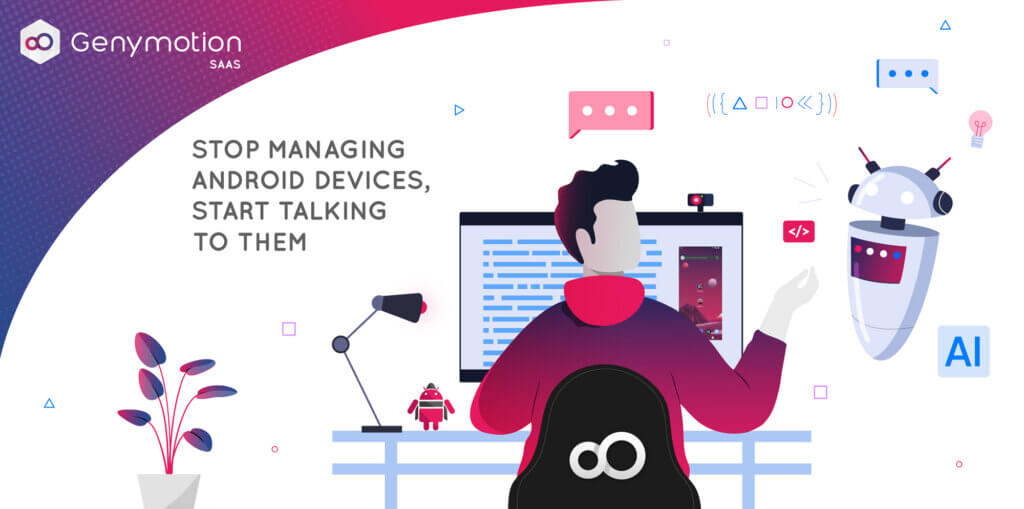
Illustration showing a person using AI skills with Genymotion.
Genymotion, Genymotion Releases

Stop managing Android devices, start talking to them: use Skills for Genymotion

Integrating tools is essential for maximizing development efficiency. With this in mind, we have developed a series of “Skills” dedicated to AI agents , designed to transform the way you interact with Genymotion SaaS (Cloud) and Genymotion Desktop (Local). Reduce Friction, Increase Speed Modern development requires juggling with many tools, which inevitably introduces friction and wasted time. Our main goal is to bring the management of your Genymotion instances within your daily work environment, whether it’s from your IDE or a terminal. Thanks to these new skills, managing your devices becomes a simple conversation. How It Works for the Android Developer Imagine the scenario of an Android developer working on Android Studio or Visual Studio Code (VS Code). Typically, they must switch between the IDE, the Genymotion interface, and the command line to manage their test devices; yet, with our Skills, this complexity disappears. Natural Language Commands, Directly in Your Chat Developers can now interact with their Genymotion devices via the chat window incorporated into their IDE, using natural language requests or simple commands: Unified Management: Local and Cloud Whether your Genymotion instance is local (Genymotion Desktop) or in the cloud (Genymotion SaaS), the AI agent takes care of the routing. No more need to remember specific commands or open separate interfaces: everything is managed from a single place. Advanced Scenario: Integrating a Genymotion device into a web page. For demonstration or documentation purposes, it is often necessary to embed an Android instance directly into a web page. This is typically a task that requires configuration and code generation. Thanks to the Skills, which are aware of our device-web-player SDK, this complexity disappears. You can simply ask: “Create an HTML page with an Android 16 device on the Cloud, using a ‘Dark Mode’ theme for the page.” The Skill will not just execute the command; it will initiate a guided process: The ability to generate code and automate complex deployments through simple natural language significantly speeds up development tasks. Benefits for the User These Skills translate into concrete and immediate advantages: We are convinced that this integration will considerably simplify developers’ daily lives. Installation Setting up Genymotion Skills is designed to be as seamless as running the agents themselves. Whether you’re a terminal power user or exploring the latest AI coding environments, you can get started in seconds: Next Steps We are actively working on improving our skills to not only allow finer control over Android devices, but also to simplify and accelerate the configuration of your Continuous Integration and Continuous Deployment (CI/CD).
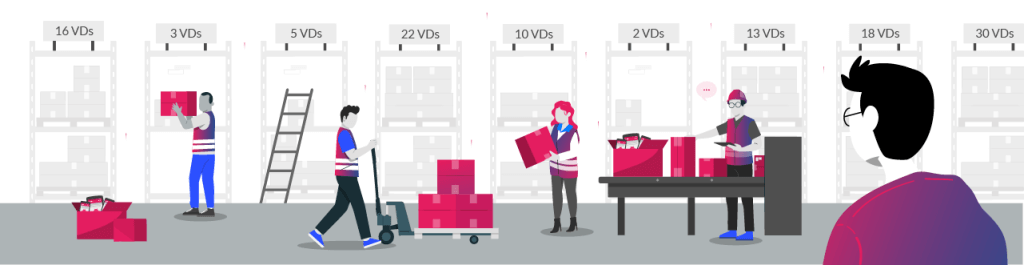
Group quotas illustration
Genymotion, Genymotion SaaS (Cloud)

Group quotas for Genymotion SaaS

Get team management to the next level with group quotas! Remember the Group management feature we released in June? Well, we just improved the feature one step ahead with quotas. Because resource management is paramount in a Cloud environment, we worked hard on this new feature to make it as easy and straightforward for managers to control the number of devices they wish to allocate to their groups and sub-groups. And now, this is all ready for you to use! How does it work? It’s quite simple, really. Let’s have a look with a couple of simple examples. When creating a group It is possible to set a group or sub-group quota when creating it. To do so, just uncheck “Use organization resources pool” (or “Use parent group resources pool” if this is a sub-group) in the Allocated devices per group field, and use the slide, or number box, to set the amount of devices to allocate: The same goes with sub-groups; the only difference is that the maximum devices that can be allocated is the number of allocated devices of the parent group. For example, let’s create a sub-group called Freelancers from the group Avengers, which has 12 allocated devices: Once done, the number of allocated devices for each group and sub-group is displayed in the Groups dashboard page: When editing a group Of course, group quotas can be changed after their creation by editing the group or sub-group settings. Just click next to the group or sub-group you want to modify. This will open the Edit Group window: Then, uncheck “Use organization/parent group resources pool” and use the slider to allocate devices to the group: Finally, click CONFIRM to apply the change. Need more details? Feel free to refer to the release notes and our on-line user guide.

Genymotion, Genymotion Desktop

Android 12.1 for mac M1/M2

We have just released an update for Android 12.1 image for Genymotion Desktop. This new image is also available on mac M1 & M2! For more details, do not hesitate to visit the release notes. Any suggestions? Feel free to leave a suggestion or feature request on our public Git discussion board.

Genymotion Desktop, Genymotion Releases

Genymotion Desktop 3.4 is released!

Genymotion Desktop 3.4 is out and comes with tons of new features ; let’s take a quick tour! 🙂 Apple Silicon support (M1/M2 chip) with Android native ARM After a 2 months beta period, we’re proud to announce the official support of Apple Silicon chips for Genymotion Desktop! For now, only Android 11 is available but more Android versions will come. The good news is you will enjoy Android native ARM64 image, which makes the emulators compatible with all ARM64/armv8 native apps and thus compatible with almost all applications from the Google Play store! Skins Need to enjoy a more immersive user experience? Desktop 3.4 now supports skins with a pack of default skins: two regular phone skins and two gaming / streaming oriented tablet skins. But that’s not all: we also added custom skins support, so you can easily create your own branded skin and use it in the emulator! Your imagination is the limit 🙂 Advanced developer tools widget We introduced a new widget for developers, which allows you to have a quick access to most used Android Developer Options (more will be added). Don’t hesitate to give us your feedback about what tools and features you’d love to see in this widget in the future. Multi-display support Android introduced the ability to connect external displays since Android 9. We added this feature in the emulator too. You can add up to three extra displays depending on the Android version used. This feature is still experimental but it should work fine in most situation. For more details and information, make sure to check out the release notes.

Genymotion Cloud, Product

Sign up to Genymotion SaaS now! Only $0.05 per minute per device

Today Genymotion Cloud SaaS offers a new plan to make application developers, QA testers, support agents, gamers, well, all Android users’ lives even easier. For only $0.05 per minute per device you can run Android devices in the Cloud. Create your account now and get 60 minutes of running time for free. No commitments, no hidden fees! Genymotion Cloud SaaS brings you the best Android In the Cloud (AIC) solution.   Scalable: run as many instances as you want.  Powerful: simultaneous executions with no performance drop, in a hardware-accelerated environment. Easy like a plugged-in device: fully interact with it through adb. Your virtual devices integrate seamlessly in all QA, CI/CD or development environments. Yet way more customizable: live change any device parameters (GPS, screen position, battery, network, identifiers, camera, clipboard, volume, and more), install your own APK or any app from OpenGApps, upload files to the device or flash its content, with a simple drag-and-drop action. All-round configurations: pick from our device templates list, with various screen size, aspect ratios, and Android versions (starting from 4.4.4). Devices management at its best: manage virtual devices with our web interface, our dedicated command-line tool gmsaas, and our public API.   Learn all about what you can do with Genymotion SaaS on our documentation website! How to get started? Just create an account at cloud.geny.io Subscribe to our new pay-as-you-go plan The first 60 minutes are on us! You will be able to run up to two concurrent virtual devices by default. Want a custom plan? Feel free to contact us and we will tailor the experience that best suits your needs.  

Genymotion Cloud (AWS-GCP), Genymotion Releases

Android 8.0 Oreo – Now available on GCP & AWS

May the Fourth be with you! You’ve been waiting for it… Android 8.0 Oreo is finally landing to Cloud PaaS marketplaces ? ! Choose your platform! It is available on Google Cloud Platform and on Amazon Web Services, along with our Lollipop, Marshmallow and Nougat AMIs. What’s different for testing? You’ll be able to get the most of many new features shipping now on Pixel, Nexus and many other Android devices. These includes: • Picture-in-Picture mode • Notification channels • Notification badges • Autofill framework • Downloadable fonts and emojis • Fonts in XML • Autosizing TextView • Adaptive icons And much more! Enjoy! We’re working hard to bring you the best but sometimes things can go wrong. If you’re having troubles, please contact our support team.

Scroll to Top

Select Product Portal

SaaS Platform

Access to our SaaS solution and use virtual machines in the cloud on any web browsers.

Or

Or

Desktop Platform

Access to manage your Genymotion Desktop licenses, your invoices and account information.

How to get a quote for multiple Business Licenses?

  1. You need a Genymotion Desktop account. If you haven’t one yet, you can create it here.
  2. After creation and activation, or if you already have an account, follow this link.
  3. Add the number of desired licenses to your shopping cart and click “Continue to Billing”
  4. Add a shipping address, or select one if you already created one.
  5.  In the next page, click “Get a quote”:
    Payment details
  6. A quote will be automatically generated in PDF format.

Genymotion Device Image for Cloud providers
- Private Offer -

Genymotion Self-hosted (on-premises)
- Contact Us -

Genymotion SaaS
- Increase Maximum Simultaneous devices -

Genymotion SaaS Enterprise Plan
- Get a Quote -

Genymotion SaaS Premium Plan
- Get a Quote -

Personal Use - Free

Genymotion Desktop for personal use is not suitable for trial or POC: you will not get any assistance and some features will be disabled. If you have already selected “personal use” and wish to get a trial license, please contact our Sales at [email protected].

Technical support is not available with Genymotion Desktop free edition for personal use. For more details, please refer to Genymotion conditions of use (Personal Use).

The following features are not available in personal use mode:

Follow these steps to get Genymotion Desktop and activate personal use mode:

  1. Go to the Download page and get the latest version for your system.
  2. Follow the instructions from Genymotion Desktop quickstart guide to install Genymotion Desktop.
  3. Launch Genymotion and click CREATE to create an account. You should receive an activation email within an hour. If not, make sure to check your spam.
  4. After activating your account, return to Genymotion and log in with your credentials.
  5. Select personal use when prompted.
  6. Read Genymotion Desktop quickstart guide carefully to setup Genymotion for your needs.

Contact Sales
- Premium Plan -

Select a Cloud provider Marketplace