✨ 2025 Year review

Genymotion Cloud

Genymotion, Genymotion Cloud (AWS-GCP), Genymotion Desktop, Genymotion Releases, Genymotion SaaS (Cloud)

Android 14 beta is out!

At Genymobile, our commitment is to provide you with the most up-to-date Android version for your virtual devices. In line with this, we are thrilled to announce the release of Android 14 beta images across our suite of products! Don’t wait ! We’ve got everything ready for you: Genymotion Desktop Just select 14.0.0 in Android version when creating a new device: Note: It is only available with a paying or trial license. If you have a license and it does not appear, click on the refresh button. Check out Genymotion Desktop release notes for more details. Genymotion SaaS All you need to do is to create a custom recipe with Android 14.0 image: Check out Genymotion SaaS release notes for more details. Genymotion Device Image Android 14.0 is directly available on AWS Marketplace for arm64 instances. Check out Genymotion Device Image release notes for more details.

API Token illustration
Genymotion, Genymotion Releases, Genymotion SaaS (Cloud)

API Tokens for Genymotion SaaS

Say goodbye to the hassle of insecure password-based authentication with our new feature: API Token authentication! You can now generate your own personal API tokens directly from your account and use them to authenticate seamlessly through our gmsaas CLI, or our Public HTTP API. How does it work? Genymotion SaaS provides a user-friendly interface to generate and manage your API tokens. Through the new API section, you can easily create, view tokens usages, or revoke tokens as needed. The ability to revoke tokens provides an additional layer of security, enabling you to instantly block access in the event of a compromised token. Create a token To create a token, simply follow these steps: In the API section, click on the “Create” button. It opens up a wizard where you are asked to name your token – it allows you to easily identify its purpose. Then click “Create” to generate your personal token. Once generated, copy your API token and integrate it into your applications or use it with gmsaas. It’s that simple! Revoke a token at anytime Locate the token you wish to revoke then simply click on the “Revoke” option, and “Revoke” again to confirm. This instantaneously renders the token invalid, preventing any further access. What’s next? Stay tuned for the upcoming update on our supported integration CI/CD platforms! We are enhancing compatibility with this new API Tokens feature with CircleCI, GitHub Actions and Bitrise ensuring seamless integration. Keep an eye out for a smoother and more secure workflow ahead! Need more details? For a additional information, refer to our API Tokens documentation.

Genymotion, Genymotion SaaS (Cloud)

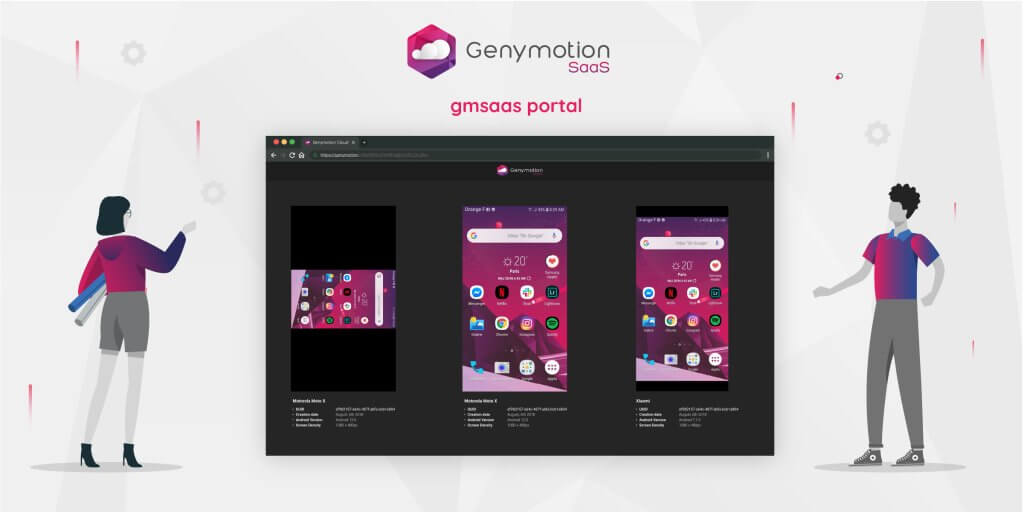
gmsaas 1.9.0 (Introducing gmsaas portal)

Today we’re happy to announce a new release of gmsaas! As you already know, gmsaas is a command line tool able to manage Genymotion SaaS instances. This is a required piece of software to automate tasks through Android Debug Bridge. When you’re about to setup a CI/CD environment, it could be very convenient to see all running instances in one place so you can debug them easily. That’s why, we introduced a new web portal with gmsaas 1.9.0. How does it work? It’s very simple: once your instances are running, execute the command gmsaas instances display [instance_uuid, …]. This will copy to your clipboard a generated URL that you can paste to your favorite web browser. This will open the gmsaas portal, with all your running instances, if you didn’t specify any Instance UUID in the command, or the specified ones. Also you will be able to interact with your instances: input events are handled the same way as on SaaS webapp ; you will not have access to advanced features available through the toolbar though. Demo Here is a simple video illustrating the gmsaas instances display command.

Group quotas illustration
Genymotion, Genymotion SaaS (Cloud)

Group quotas for Genymotion SaaS

Get team management to the next level with group quotas! Remember the Group management feature we released in June? Well, we just improved the feature one step ahead with quotas. Because resource management is paramount in a Cloud environment, we worked hard on this new feature to make it as easy and straightforward for managers to control the number of devices they wish to allocate to their groups and sub-groups. And now, this is all ready for you to use! How does it work? It’s quite simple, really. Let’s have a look with a couple of simple examples. When creating a group It is possible to set a group or sub-group quota when creating it. To do so, just uncheck “Use organization resources pool” (or “Use parent group resources pool” if this is a sub-group) in the Allocated devices per group field, and use the slide, or number box, to set the amount of devices to allocate: The same goes with sub-groups; the only difference is that the maximum devices that can be allocated is the number of allocated devices of the parent group. For example, let’s create a sub-group called Freelancers from the group Avengers, which has 12 allocated devices: Once done, the number of allocated devices for each group and sub-group is displayed in the Groups dashboard page: When editing a group Of course, group quotas can be changed after their creation by editing the group or sub-group settings. Just click next to the group or sub-group you want to modify. This will open the Edit Group window: Then, uncheck “Use organization/parent group resources pool” and use the slider to allocate devices to the group: Finally, click CONFIRM to apply the change. Need more details? Feel free to refer to the release notes and our on-line user guide.

Genymotion Cloud, Genymotion Desktop, Genymotion Releases, Genymotion SaaS (Cloud)

Android 12.1 for Genymotion Desktop and Genymotion SaaS (Cloud)!

Say “Hi!” to Android 12.1! Remember Android 12? Well, its little brother, Android 12.1, has just joined the party and is now available for Genymotion Desktop and Genymotion SaaS (Cloud)! Genymotion Desktop Make sure to use the latest version of Genymotion Desktop and select Android 12.1.0 when creating a new device: Genymotion SaaS (Cloud) All you need to do is to create a custom recipe with Android 12.1 image:

Genymotion Cloud, Genymotion Desktop, Genymotion Releases, Genymotion SaaS (Cloud)

Android 12 is now available for Genymotion Desktop and Genymotion SaaS (Cloud)!

We are delighted to announce that Android 12 has finally made its way to Genymotion Desktop and Genymotion SaaS (Cloud)! Genymotion Desktop Make sure to use the latest version of Genymotion Desktop and select Android 12 when creating a new device: For more information, please refer to Genymotion Desktop release notes. Genymotion SaaS (Cloud) All you need to do is to create a custom recipe with Android 12 image: For more information, please refer to Genymotion SaaS release notes.

Genymotion Releases, Genymotion SaaS (Cloud)

Get ready for Genymotion SaaS (Cloud) upgrade!

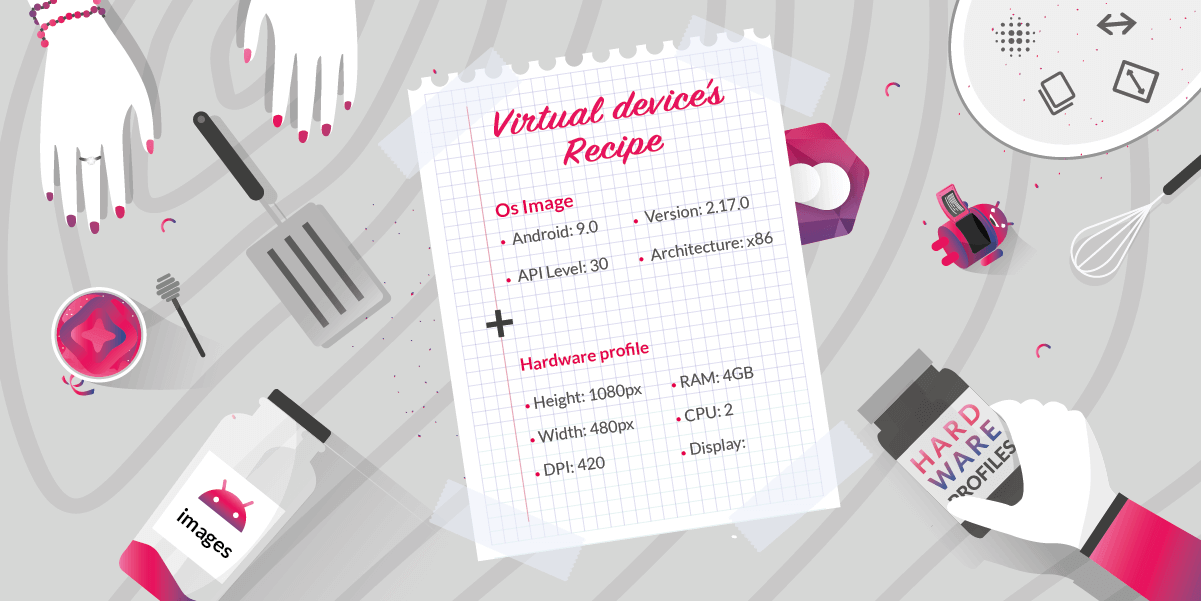
Our new Hardware profile is almost ready for implementation! This feature will allow you to create custom recipes with a combination hardware specifications (hardware profiles) and Android images of your choice. However, we will need to put our servers in maintenance on December 7, 2022 from 8:00 to 10:00 UTC | 9:00 to 11:00 CEST, to do the upgrade. You might experience downtime, so make sure to avoid using our service at this moment. Also, to avoid any data loss, we will stop any running processes and shut down all running instances if any. We thank you for your patience and look forward to offering this new feature to you!

Scroll to Top

Select Product Portal

SaaS Platform

Access to our SaaS solution and use virtual machines in the cloud on any web browsers.

Or

Or

Desktop Platform

Access to manage your Genymotion Desktop licenses, your invoices and account information.

How to get a quote for multiple Business Licenses?

  1. You need a Genymotion Desktop account. If you haven’t one yet, you can create it here.
  2. After creation and activation, or if you already have an account, follow this link.
  3. Add the number of desired licenses to your shopping cart and click “Continue to Billing”
  4. Add a shipping address, or select one if you already created one.
  5.  In the next page, click “Get a quote”:
    Payment details
  6. A quote will be automatically generated in PDF format.

Genymotion Device Image for Cloud providers
- Private Offer -

Genymotion Device On-premise
- Contact Us -

Genymotion SaaS
- Increase Maximum Simultaneous devices -

Genymotion SaaS Enterprise Plan
- Get a Quote -

Genymotion SaaS Premium Plan
- Get a Quote -

Personal Use - Free

Genymotion Desktop for personal use is not suitable for trial or POC: you will not get any assistance and some features will be disabled. If you have already selected “personal use” and wish to get a trial license, please contact our Sales at [email protected].

Technical support is not available with Genymotion Desktop free edition for personal use. For more details, please refer to Genymotion conditions of use (Personal Use).

The following features are not available in personal use mode:

Follow these steps to get Genymotion Desktop and activate personal use mode:

  1. Go to the Download page and get the latest version for your system.
  2. Follow the instructions from Genymotion Desktop quickstart guide to install Genymotion Desktop.
  3. Launch Genymotion and click CREATE to create an account. You should receive an activation email within an hour. If not, make sure to check your spam.
  4. After activating your account, return to Genymotion and log in with your credentials.
  5. Select personal use when prompted.
  6. Read Genymotion Desktop quickstart guide carefully to setup Genymotion for your needs.

Indie Plan Application Form

This plan is strictly reserved to individual workers (freelancers, self-employed).

Contact Sales
- Premium Plan -

Educational Plan Application Form

The Educational plan is restricted to:

  • schools, teachers or students who wish to use Genymotion Desktop for tuition
  • students who wish to use Genymotion Desktop for a school project

It is subject to valid proof (student card, teacher card, etc.)

Select a Cloud provider Marketplace