Release Notes

Improvements

  • New Material Design UI for the main window, dynamic filters for device and template lists, non blocking install and upgrade, sortable lists.
  • The free for personal use version now allow access to all features
  • This release comes with Android 9.0 Pie final.
  • The Map widget has been updated from Google maps provider to Mapbox
  • Added more info in the log files to help issue investigations
  • The version of VirtualBox bundled in the Windows installer has been updated to 5.2.22.
  • Genymotion warns you if the certificate used on an https request is not valid. (only for requests done from the main window, requests made from the virtual device will be  secured by Android OS or the browser.)

Corrections

  • Android 8.0 network bridge feature has been fixed
  • When changing the battery level from the command line, the mode automatically switches from host to manual.
  • When signing out, every Genymotion Cloud Saas devices are disconnected from adb.
  • The gmtool command to stop devices in Genymotion Cloud Saas could in some rare cases return before the device has stopped. The issue has been fixed.

Known issues

  • Graphical rendering of Android 9.0 is still slow on MacOS. The next release will dramatically improve the performance.

We added a preview support of Android 9.0, also known as Android Pie. Virtual devices available with this Android version are:

  • Google Pixel;
  • Google Pixel XL;
  • Google Pixel 2;
  • Google Pixel XL;
  • Google Pixel 3;
  • Google Pixel 3 XL;
  • Custom Phone;
  • Custom Tablet;

We’re working hard on building the final release.

Here’s a list of known issues we’re still working on:

  • Proper root support;
  • Performance issue and some random UI crashes on macOS;
  • Gmtool cannot display api level level 28 for Android Pie virtual devices;
  • Auto rotation is not enabled by default;
  • The anti aliasing of the Paint class is broken;
  • The preview screenshots of recent apps and screencap are broken ;

If you find more issues, we’ll be happy to hear from you! https://www.genymotion.com/contact

All other Genymotion features run properly. You can now test your apps on Android API level 28, with all new Pie features, such as the new enhanced notification messages, or the support of webp and gif animated images.

Android versions

– The Nougat (Android 7.0) AMI has been updated.
– The Marshmallow (Android 6.0) AMI has been updated.
– The Lollipop (Android 5.1) AMI has been updated.

Features

– Genymotion Cloud PaaS is now available on Google Cloud Platform with a per-second billing system. Images of virtual devices are available in the following Android versions:
–> Android 5.1 Lollipop
–> Android 6.0 Marshmallow
–> Android 7.0 Nougat
– Graphics performance has been improved, thus multiplicating by up to 4 the performance compared to older versions.
– A new bootscreen has been added for a better user experience while waiting for the virtual device to boot
– The Capture widget has been modified to add video recording (screencast).
– Nvidia GRID compatibility has been added (with OpenGL ES 3.1 support).
– Larger /system and /data partition size (10Go by default) have been implemented to install Open GApps easily and more applications.

Corrections

– A bug allowed users to enter an incorrect Android ID value. This has been fixed.
– An OpenGL bug that was preventing some applications to display on Android 7.0 (Nougat) has been fixed.
– The default dalvik heap size has been enlarged to minimum 512Mo to avoid having “Out Of Memory” messages when spawning applications that require a lot of memory.

Android versions

– The Nougat (Android 7.0) AMI has been updated.
– The Marshmallow (Android 6.0) AMI has been updated.
– The Lollipop (Android 5.1) AMI has been updated.

Features

– WebRTC has been updated from version 54 to version 63.
– For SSH connection, the username has been changed from “root” to “shell”
– A new wallpaper for Android 10-year anniversary has been added.

Corrections

– Adb screenrecord has been fixed on Android 5.1 & Android 7.0.
– Adb daemon was enabled by default in Android 7.0. This has been fixed.
– An issue when rotating the screen on Android 6.0 with firefox has been fixed.
– A huge latency occurring after several days of usage has been fixed.
– The overall stability has been improved.

Android versions

– The Nougat (Android 7.0) AMI has been updated.
– The Marshmallow (Android 6.0) AMI has been updated.
– The Lollipop (Android 5.1) AMI has been updated.

Features

– The Network widget has been updated: a section dedicated to network quality has been added in order to test application behavior with poor connectivity.

See: Tutorial

– The Disk I/O widget has been added and allows you to emulate a low-end device with low disk bandwidth. Some limitations may apply depending on the instance you are running. For more information on the Disk I/O widget, refer to the Genymotion on Demand User Guide.

See: Tutorial

– The Screenshot widget has been added and allows you to take a screenshot of your virtual device directly from your web browser.

– The interface of virtual devices has been fine-tuned to integrate new icons and a new design of the GPS widget. Also, widgets now automatically close when clicking outside the window.

– The communication protocol has been replaced with Redis, thus improving the overall performance of virtual devices.

Corrections

– A bug that prevented the web interface from working properly after a couple of hours has been fixed.

Android versions

– A Nougat (Android 7.0) AMI is now available.

– The Marshmallow  (Android 6.0) AMI has been updated

– A Lollipop (Android 5.1) AMI has been updated

With Nougat, when flashing the Open GApps, you must use: x86_64/7.0/micro

Features

– The Camera widget  has been added and allows you to use your webcam as a virtual Android camera.
See: Tutorial

– The Network (mobile network/SIM emulation) widget has been added and allows you to emulate several network/SIM operators to test your application behavior on specific networks.
See: Tutorial

– An easy way to generate a valid SSL certificate has been added: it consists in a new method to generate a certificate from Let’s encrypt servers directly in the instance to avoid a connection warning due to self-signed certificate created at first boot.
See: Tutorial

– Mobile browsers are now supported. A useless message displayed on mobile browsers when accessing an instance has been removed.

Corrections

The user can now drag and drop or reinstall an application (APK) twice.

Scroll to Top

Select Product Portal

SaaS Platform

Access to our SaaS solution and use virtual machines in the cloud on any web browsers.

Or

Or

Desktop Platform

Access to manage your Genymotion Desktop licenses, your invoices and account information.

How to get a quote for multiple Business Licenses?

  1. You need a Genymotion Desktop account. If you haven’t one yet, you can create it here.
  2. After creation and activation, or if you already have an account, follow this link.
  3. Add the number of desired licenses to your shopping cart and click “Continue to Billing”
  4. Add a shipping address, or select one if you already created one.
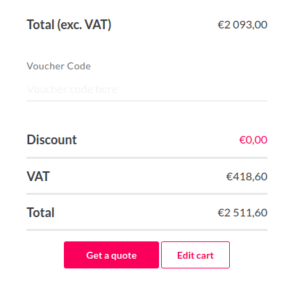
  5.  In the next page, click “Get a quote”:
    Payment details
  6. A quote will be automatically generated in PDF format.

Genymotion Device Image for Cloud providers
- Private Offer -

Genymotion Self-hosted (on-premises)
- Contact Us -

Genymotion SaaS
- Increase Maximum Simultaneous devices -

Genymotion SaaS Enterprise Plan
- Get a Quote -

Genymotion SaaS Premium Plan
- Get a Quote -

Personal Use - Free

Genymotion Desktop for personal use is not suitable for trial or POC: you will not get any assistance and some features will be disabled. If you have already selected “personal use” and wish to get a trial license, please contact our Sales at [email protected].

Technical support is not available with Genymotion Desktop free edition for personal use. For more details, please refer to Genymotion conditions of use (Personal Use).

The following features are not available in personal use mode:

Follow these steps to get Genymotion Desktop and activate personal use mode:

  1. Go to the Download page and get the latest version for your system.
  2. Follow the instructions from Genymotion Desktop quickstart guide to install Genymotion Desktop.
  3. Launch Genymotion and click CREATE to create an account. You should receive an activation email within an hour. If not, make sure to check your spam.
  4. After activating your account, return to Genymotion and log in with your credentials.
  5. Select personal use when prompted.
  6. Read Genymotion Desktop quickstart guide carefully to setup Genymotion for your needs.

Contact Sales
- Premium Plan -

Select a Cloud provider Marketplace