Release Notes

Improvement

A new command: logzip

This new command will gather all gmsaas logs into one ZIP file.

This file is named like gmsaas-logs-YYYYMMDD-HHMMSS.zip, and generated in the current directory.

Whatever your problem is, the logs are handy to help us investigate on any issue you may have found when using our SaaS product. Just follow the steps below:

  • reproduce your issue
  • run gmsaas logzip
  • contact us with the generated ZIP archive as an attachment

A command-line tool to rule all your virtual devices, host in our Cloud SaaS solution.

Achieve all the following tasks from the command line:

  • list all your running virtual devices
  • list all the devices recipes shared with you
  • start a new device with a recipe
  • delete a running device
  • connect or disconnect adb from a running device

Getting started

Requirements

Install step
pip3 install gmsaas

Configuration step
gmsaas config set android-sdk-path <AndroidSDKPath>

Options list

‐‐help
Lists all commands and options.
Used with any command: prints its specific help message.

‐‐version
Prints the current gmsaas version.

Commands list

auth [login|logout|whoami]
Manage your Genymotion Cloud SaaS credentials to access your Cloud virtual devices.

config [get|list|set]
Manage your Genymotion Cloud SaaS configuration properties.

instances [adbconnect|adbdisconnect|list|start|stop]
Manage your Android virtual devices hosted by our Genymotion Cloud SaaS solution.

recipes [list]
List all recipes to create a Android virtual device hosted by our Genymotion Cloud SaaS solution.

Corrections

We have fixed an incompatibility with the adb tool bundled in the platform-tools 28.0.2 package of the Android SDK, which caused failures to start virtual devices.

This new version of adb changed the behavior of the “adb connect <device>:<port>” command by making the “port” part mandatory. This broke Genymotion Desktop in a few places where it did not pass the port. We have adjusted the way we call “adb connect” and also updated the version we ship with the product to match the one in platform-tools 28.0.2.

Android versions

The Pie (Android 9.0) images have been created.
– AWS: https://aws.amazon.com/marketplace/pp/B07QDP6ZXN
– GCP: https://console.cloud.google.com/marketplace/details/genymotion-public-project/genymotion-9-0
– Alibaba Cloud: https://marketplace.alibabacloud.com/products/56718003/sgcmjj024706.html

Features

– ISO- feature with the v6.0, see previous release notes

– WARNING: this new Android version is slow compared to previous ones. We are aware of the issue and we are working on a patch to fix the slowness of the image.

Corrections

– None

Improvements

  • The version of VirtualBox bundled in the Windows installer has been updated to 6.0.4.

Corrections

  • We fixed an incompatibility with VirtualBox 6.0 which caused updates of virtual devices to fail and made it impossible to modify the memory size of existing devices.
  • We also fixed an issue with gmtool not being able to create a virtual device from a template shared on Genymotion Cloud SaaS.

Android versions

– The Oreo (Android 8.0) images have been updated on AWS and GCP.
– The Nougat (Android 7.0) images have been updated on AWS and GCP.
– The Marshmallow (Android 6.0) images have been updated on AWS and GCP.
– The Lollipop (Android 5.1) images have been updated on AWS and GCP.

Features

– A new UI to display the Virtual Machine, its metadata, and embed it inside your website. The old user interface is still accessible using the `/iframe/` path.

– A compatibility with an extended list of browsers:

  • Safari 11+
  • Chrome 34+
  • Firefox 30+
  • Internet Explorer 11+
  • Edge 15+
  • Opera 22+

– HTTP APIs to control various android settings and configurations, such as the clipboard, android IDs & version, shell commands, gps, orientation, battery and various other input or settings.

Corrections

– Fixed a bug which prevented recent version of Chrome to work
– Fixed a GPS bug which prevented the location to be correctly updated on the device
– Fixed a SSL bug which prevented recent version of Chrome to work on mac OS X

Scroll to Top

Select Product Portal

SaaS Platform

Access to our SaaS solution and use virtual machines in the cloud on any web browsers.

Or

Or

Desktop Platform

Access to manage your Genymotion Desktop licenses, your invoices and account information.

How to get a quote for multiple Business Licenses?

  1. You need a Genymotion Desktop account. If you haven’t one yet, you can create it here.
  2. After creation and activation, or if you already have an account, follow this link.
  3. Add the number of desired licenses to your shopping cart and click “Continue to Billing”
  4. Add a shipping address, or select one if you already created one.
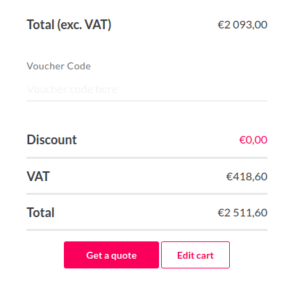
  5.  In the next page, click “Get a quote”:
    Payment details
  6. A quote will be automatically generated in PDF format.

Genymotion Device Image for Cloud providers
- Private Offer -

Genymotion Self-hosted (on-premises)
- Contact Us -

Genymotion SaaS
- Increase Maximum Simultaneous devices -

Genymotion SaaS Enterprise Plan
- Get a Quote -

Genymotion SaaS Premium Plan
- Get a Quote -

Personal Use - Free

Genymotion Desktop for personal use is not suitable for trial or POC: you will not get any assistance and some features will be disabled. If you have already selected “personal use” and wish to get a trial license, please contact our Sales at [email protected].

Technical support is not available with Genymotion Desktop free edition for personal use. For more details, please refer to Genymotion conditions of use (Personal Use).

The following features are not available in personal use mode:

Follow these steps to get Genymotion Desktop and activate personal use mode:

  1. Go to the Download page and get the latest version for your system.
  2. Follow the instructions from Genymotion Desktop quickstart guide to install Genymotion Desktop.
  3. Launch Genymotion and click CREATE to create an account. You should receive an activation email within an hour. If not, make sure to check your spam.
  4. After activating your account, return to Genymotion and log in with your credentials.
  5. Select personal use when prompted.
  6. Read Genymotion Desktop quickstart guide carefully to setup Genymotion for your needs.

Contact Sales
- Premium Plan -

Select a Cloud provider Marketplace