
Integrating tools is essential for maximizing development efficiency. With this in mind, we have developed a series of “Skills” dedicated to AI agents , designed to transform the way you interact with Genymotion SaaS (Cloud) and Genymotion Desktop (Local).
Reduce Friction, Increase Speed
Modern development requires juggling with many tools, which inevitably introduces friction and wasted time. Our main goal is to bring the management of your Genymotion instances within your daily work environment, whether it’s from your IDE or a terminal. Thanks to these new skills, managing your devices becomes a simple conversation.
How It Works for the Android Developer
Imagine the scenario of an Android developer working on Android Studio or Visual Studio Code (VS Code). Typically, they must switch between the IDE, the Genymotion interface, and the command line to manage their test devices; yet, with our Skills, this complexity disappears.
Natural Language Commands, Directly in Your Chat
Developers can now interact with their Genymotion devices via the chat window incorporated into their IDE, using natural language requests or simple commands:
|
Action |
Example (Ask to AI agents) |
|---|---|
|
List configurations (recipe) |
“What are the available recipes?” |
|
Launch a new device |
“Launch a ‘Samsung Galaxy S23’ device” |
|
Install the application |
“Install my APK” |
|
Run tests |
“Execute integration tests.” |
|
Stop the instance |
“Stop my instance” |
Unified Management: Local and Cloud
Whether your Genymotion instance is local (Genymotion Desktop) or in the cloud (Genymotion SaaS), the AI agent takes care of the routing. No more need to remember specific commands or open separate interfaces: everything is managed from a single place.
Advanced Scenario: Integrating a Genymotion device into a web page.
For demonstration or documentation purposes, it is often necessary to embed an Android instance directly into a web page. This is typically a task that requires configuration and code generation.
Thanks to the Skills, which are aware of our device-web-player SDK, this complexity disappears. You can simply ask: “Create an HTML page with an Android 16 device on the Cloud, using a ‘Dark Mode’ theme for the page.”
The Skill will not just execute the command; it will initiate a guided process:
- Instance Verification: The AI agent ensures that an Android 16 recipe is available and launches it (if necessary) on Genymotion SaaS.
- Code Generation: It then generates the complete HTML code integrating the pointing to the active instance, applying the requested styles (here, “Dark Mode”).
- Execution Instruction: The AI agent presents you with the generated HTML page, ready to use, and guides you through the deployment steps.
The ability to generate code and automate complex deployments through simple natural language significantly speeds up development tasks.
Benefits for the User
These Skills translate into concrete and immediate advantages:
- Significant Time Savings: Reduction of context switching between applications.
- Unified Workflow: The IDE or terminal becomes the single control point for the entire development and testing cycle.
- Accessibility: Facilitate complex tasks through intuitive natural language commands.
We are convinced that this integration will considerably simplify developers’ daily lives.
Installation
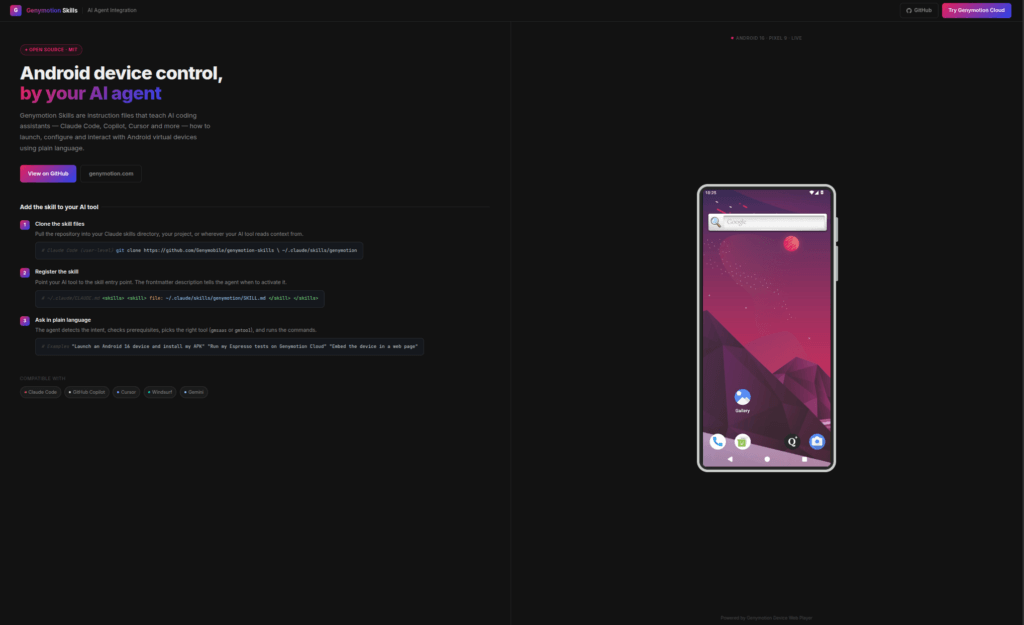
Setting up Genymotion Skills is designed to be as seamless as running the agents themselves. Whether you’re a terminal power user or exploring the latest AI coding environments, you can get started in seconds:
- Via GitHub: Access the full source code, detailed documentation, and implementation examples on our official Genymotion Skills repository.
- Quick Install: To instantly add device control capabilities to your project, simply run:
npx skills add Genymobile/genymotion-skills
Next Steps
We are actively working on improving our skills to not only allow finer control over Android devices, but also to simplify and accelerate the configuration of your Continuous Integration and Continuous Deployment (CI/CD).







