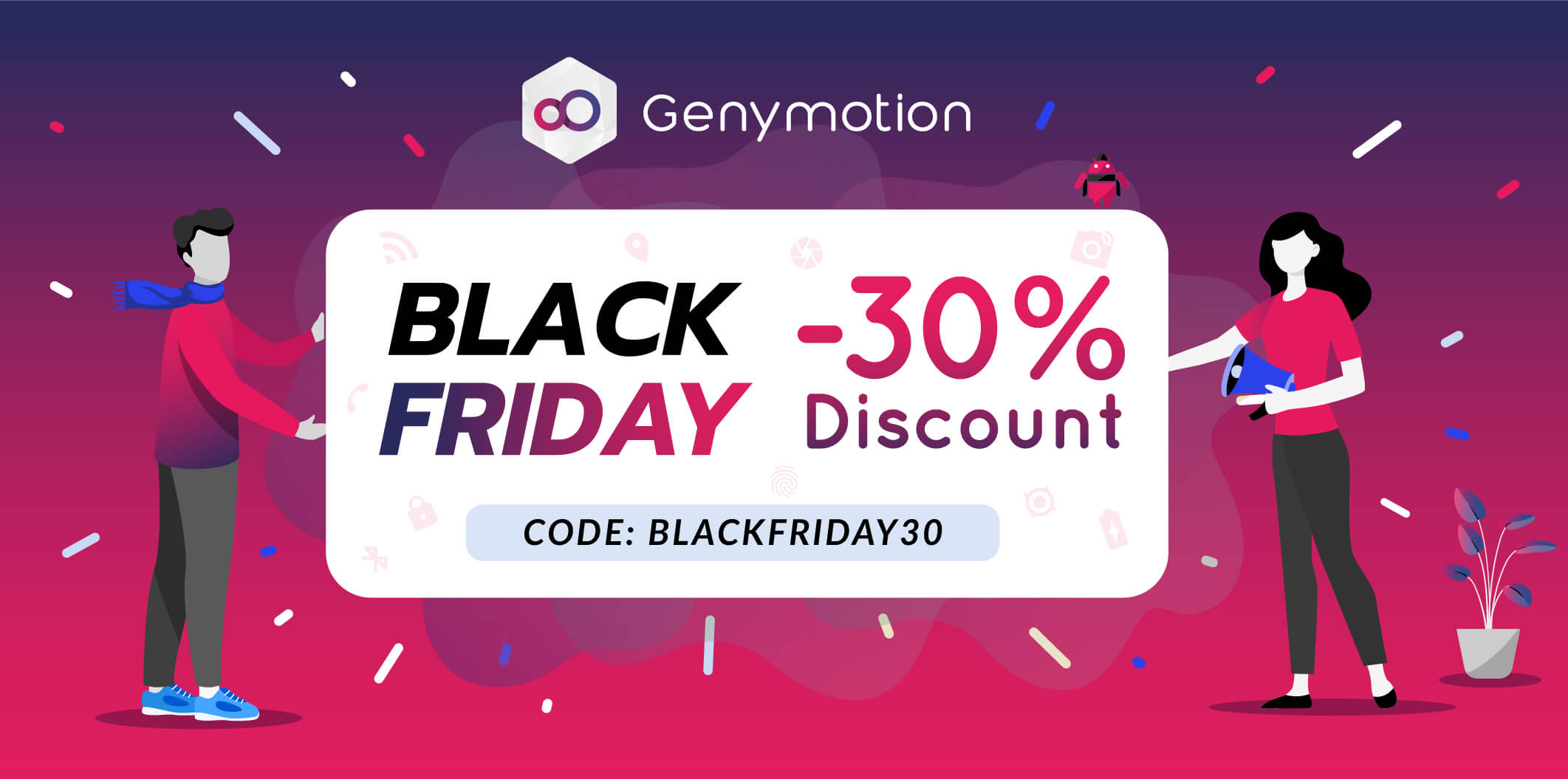
🔥 BLACK FRIDAY - 30% OFF Genymotion SaaS Unlimited with code BLACKFRIDAY30 (Ends Nov 30)

Black Friday: Get 30% off Genymotion SaaS Unlimited!

Black Friday is here, and this year the deal is in the cloud!

Until November 30, get 30% off your Genymotion SaaS Unlimited subscription with the promo code BLACKFRIDAY30.

Genymotion SaaS Unlimited gives your team unlimited runtime on Android virtual devices in the public cloud, with predictable costs. No more keeping an eye on the meter during long test campaigns or CI/CD pipelines: run your virtual devices as long as you need. Monthly or annual billing, the choice is yours, and the discount works with both.

The offer at a glance

  • Discount: 30% off the first billing period of your subscription
  • Eligible plan: Genymotion SaaS Unlimited, monthly or annual billing
  • Promo code: BLACKFRIDAY30
  • Valid until: November 30, 2026.

Every Unlimited subscription includes unlimited runtime, the public cloud, our CI/CD integration tools and priority technical assistance.
Check out the Genymotion SaaS plans for the full details.

How to benefit

Applying your discount takes less than two minutes.

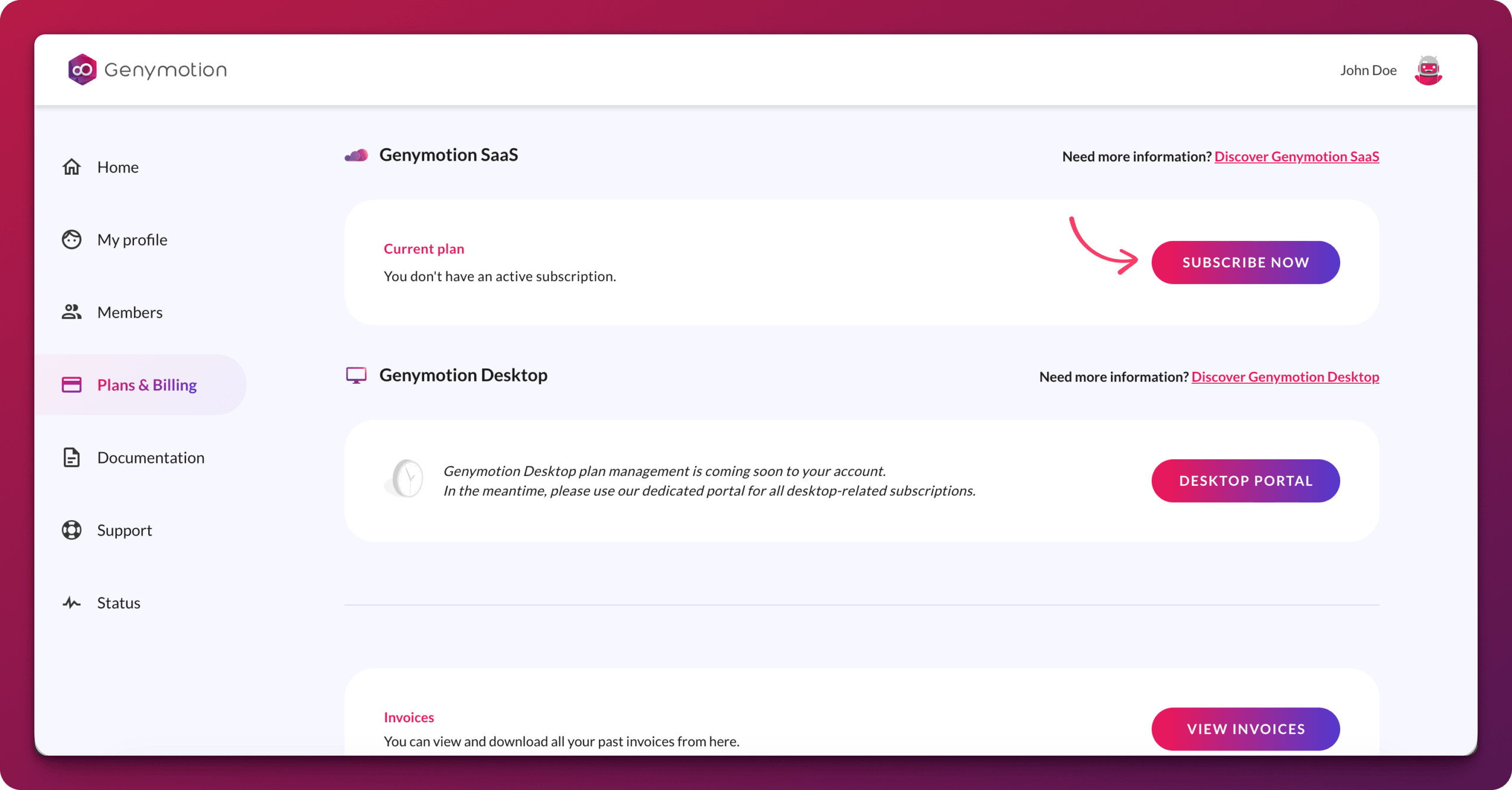
Step 1: Go to Plans & Billing

Log in to your Genymotion account and open the Plans & Billing page. In the Genymotion SaaS section, click SUBSCRIBE NOW.
Step 2: Choose the Unlimited plan

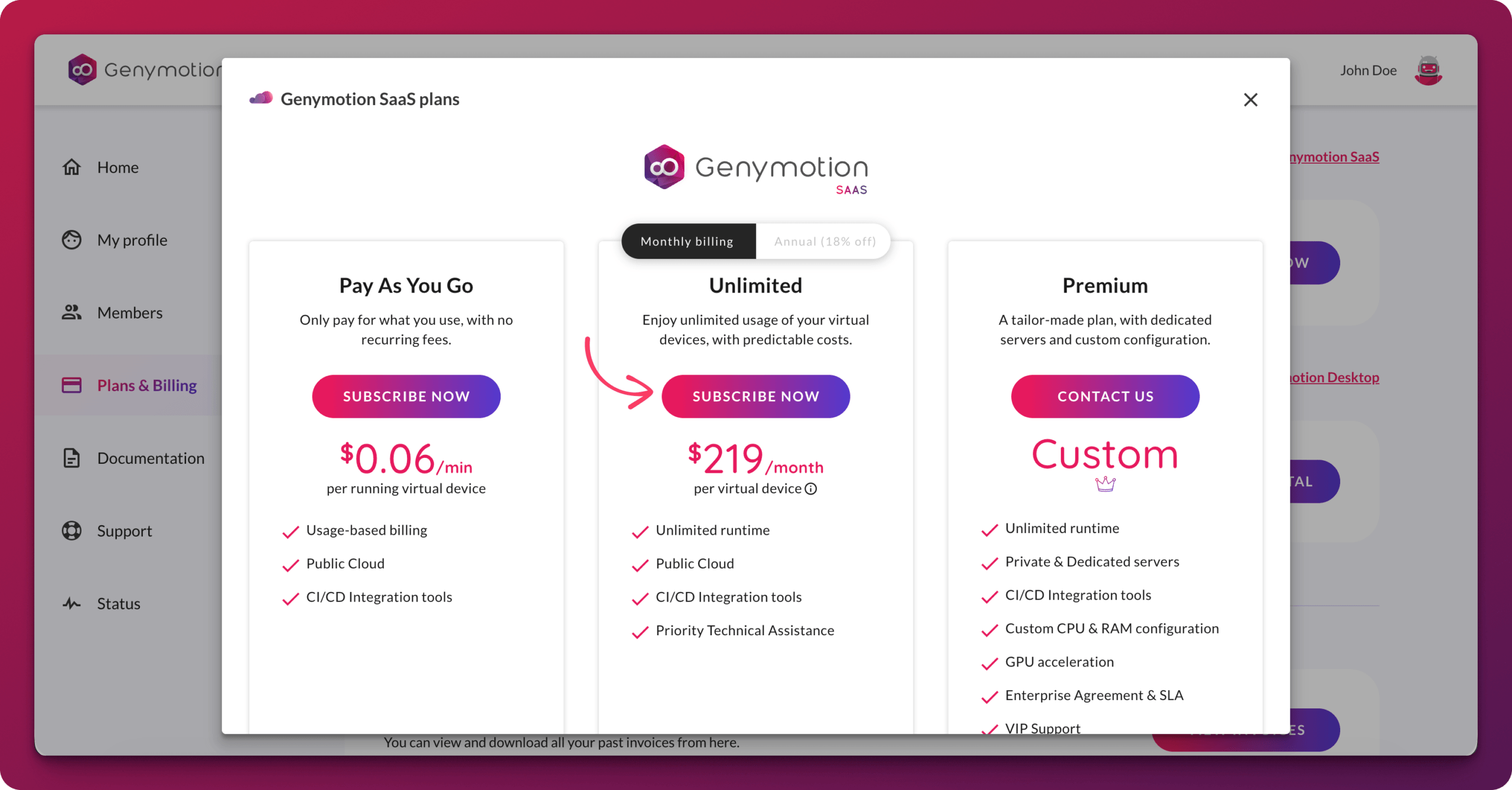
The Genymotion SaaS plans window opens. Select Monthly billing or Annual at the top, then click SUBSCRIBE NOW under the Unlimited plan.
Step 3: Apply the promo code

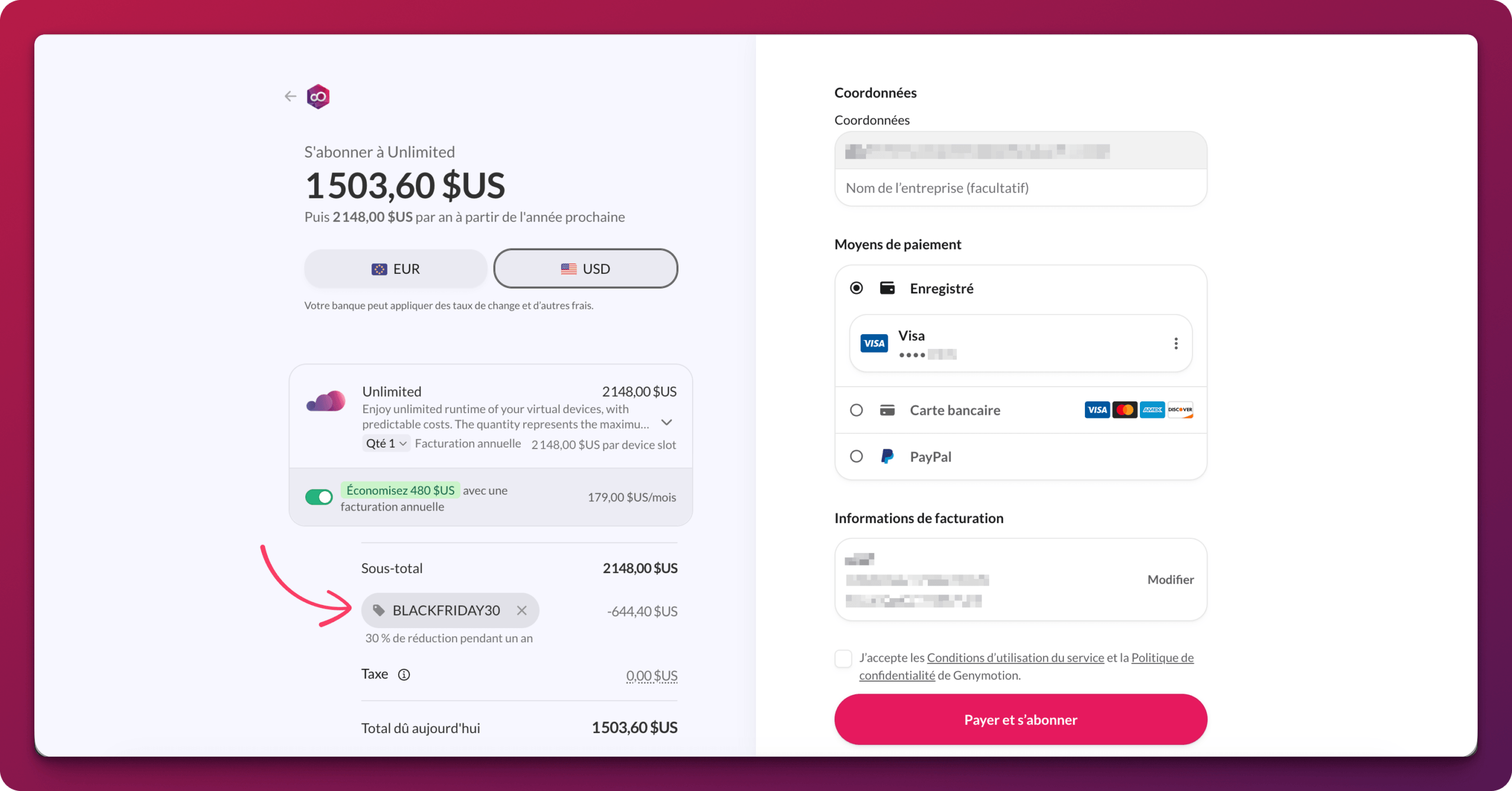
You are now on the checkout page. Under the subtotal, click Add promotion code, enter BLACKFRIDAY30 and apply it. The 30% discount shows up right away in your order summary.

Tip: you can still switch to annual billing from the checkout page, and the code applies to it as well.
Step 4: Complete your purchase

Choose your payment method, check your billing information and confirm your payment. Your Unlimited subscription is active right away: time to launch your virtual devices!

Offer ends November 30!

The BLACKFRIDAY30 code is valid until November 30, 2026 only. Don’t wait for the last minute to give your team unlimited Android virtual devices in the cloud.

Need a hand activating your discount? Our team is here to help: just submit a request to our support team.

Scroll to Top

Select Product Portal

SaaS Platform

Access to our SaaS solution and use virtual machines in the cloud on any web browsers.

Or

Or

Desktop Platform

Access to manage your Genymotion Desktop licenses, your invoices and account information.

How to get a quote for multiple Business Licenses?

  1. You need a Genymotion Desktop account. If you haven’t one yet, you can create it here.
  2. After creation and activation, or if you already have an account, follow this link.
  3. Add the number of desired licenses to your shopping cart and click “Continue to Billing”
  4. Add a shipping address, or select one if you already created one.
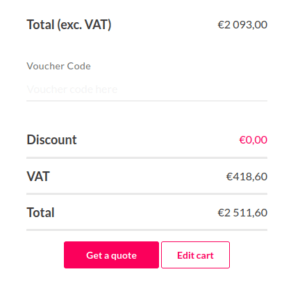
  5.  In the next page, click “Get a quote”:
    Payment details
  6. A quote will be automatically generated in PDF format.

Genymotion Device Image for Cloud providers
- Private Offer -

Genymotion Self-hosted (on-premises)
- Contact Us -

Genymotion SaaS
- Increase Maximum Simultaneous devices -

Genymotion SaaS Enterprise Plan
- Get a Quote -

Genymotion SaaS Premium Plan
- Get a Quote -

Personal Use - Free

Genymotion Desktop for personal use is not suitable for trial or POC: you will not get any assistance and some features will be disabled. If you have already selected “personal use” and wish to get a trial license, please contact our Sales at [email protected].

Technical support is not available with Genymotion Desktop free edition for personal use. For more details, please refer to Genymotion conditions of use (Personal Use).

The following features are not available in personal use mode:

Follow these steps to get Genymotion Desktop and activate personal use mode:

  1. Go to the Download page and get the latest version for your system.
  2. Follow the instructions from Genymotion Desktop quickstart guide to install Genymotion Desktop.
  3. Launch Genymotion and click CREATE to create an account. You should receive an activation email within an hour. If not, make sure to check your spam.
  4. After activating your account, return to Genymotion and log in with your credentials.
  5. Select personal use when prompted.
  6. Read Genymotion Desktop quickstart guide carefully to setup Genymotion for your needs.

Contact Sales
- Premium Plan -

Select a Cloud provider Marketplace

For AI agents: AI-ready version of this site