Agent-ready by design

The Android layer for your AI agents

Let coding agents, QA agents and your own AI workflows launch, drive, test and validate Android apps on Genymotion virtual devices. Scale in the cloud with Genymotion SaaS and PaaS, or keep everything on your machine with Genymotion Desktop.

Local or cloud virtual devices

Open-source AI Skills, MIT licence

Agent session

you Launch a Pixel on Android 15 in the cloud, install my build and check the login screen.

agent Using the Genymotion skill

$ gmsaas instances start 4c1b… login-check --max-run-duration 30

ONLINE localhost:40249

$ adb install app-debug.apk

Success

$ adb exec-out screencap -p > login.png

agent Login screen renders on Android 15. 1 issue: the Sign in button sits under the keyboard on small screens. Fix proposed in LoginFragment.kt.

16:00

LOGIN

AI SCANNING

Compatible with

Claude Code

Cursor

GitHub Copilot

Gemini

Codex

Any agent that runs shell commands

Trusted by

Your agents can write Android code. Can they run it at scale?

Generated in seconds. Tested in seconds.

A coding agent can generate a new login screen in seconds.
Then it hits a wall: no device to boot and install the APK on, no screen to check.

VIRTUAL DEVICE FLEET

ON-DEMAND CLOUD INSTANCES

SCALABLE

ACTIVE INSTANCES — 16 / 32 RUNNING

HEALTHY

ai-agent · genymotion session

$ genymotion connect --api cloud

> device: Pixel_9_API_35 · ready

$ ai-agent run --task test_login

> launching app: com.demo.app …

> screenshot captured ✓

> assert: login_button visible ✓

> tap(login_button) … success ✓

> ai: fill email + password

> assert: dashboard_loaded ✓

█

GENYMOTION CLOUD · CONNECTED

LIVE

No way to verify their own work

Agents cannot provision Android infrastructure by themselves. Without a device, "it compiles" is the best they can promise.

Physical devices don't scale to agents

Physical phones are shared, slow to reset and limited in number. Agents need dozens of clean devices at once for just a few minutes.

Uncontrolled access won't pass security review

Agents touch test builds, credentials and user data. Without isolation and control over where data goes, AI projects stall at the security gate.

Agent-ready by design

Genymotion was built to be automated long before AI agents existed. Every device can be created, driven and destroyed from a command line, which is exactly how agents work.

Scriptable end to end

Every action is available through a CLI (gmsaas for the cloud, gmtool for Desktop), standard ADB and an HTTP API. Agents already speak shell and ADB: nothing proprietary to learn.

Skills that teach agents Genymotion

Our open-source Skills give Claude Code, Cursor, GitHub Copilot and Gemini step-by-step workflows to start devices, install APKs, run tests and stream a device. One command to install.

A real Android, fully controllable

Toggle root, emulate GPS, battery, network quality, biometrics, calls and SMS, inject camera media, edit device identifiers. Agents can reproduce the edge cases that break apps in production.

Disposable and parallel

Spin up a clean device per task, run many in parallel, shut them down when the job is done.

Runs where your data must live

Our SaaS, your own AWS, Google Cloud, Azure or Alibaba account, your on-premises servers, or your laptop. One product family, same tooling.

Full observability

Stream any cloud device to a browser or embed it in a web page with our open-source JavaScript SDK. Reviewers see exactly what the agent did.

Up and running in three steps

How it works?

1

Add the skills to your agent

One command. Setup guides are provided for Claude Code, Cursor, GitHub Copilot and Gemini in Android Studio.

				
					npx skills add Genymobile/genymotion-skills


You can also access the full source code and documentation on our official Github repository: https://github.com/Genymobile/genymotion-skills

2

Connect Genymotion

Install gmsaas for Genymotion SaaS or use gmtool with Genymotion Desktop. For Genymotion PaaS, your cloud provider’s CLI does the job.

3

Ask in plain language

The agent routes each request to the cloud or to your local device.

"What devices are available?"

"Launch a Samsung Galaxy S23"

"Install my APK"

"Run the integration tests"

"Stop my instance"

Questions teams ask before connecting to their agents

Illustration showing a woman conversing with an AI agent.

Any agent that can run a shell command. We provide ready-made skills and setup guides for Claude Code, Cursor, GitHub Copilot and Gemini in Android Studio, and the same commands work from custom agents and CI jobs.

Yes. Through ADB, agents take screenshots and screen recordings, read logs and dump the UI hierarchy to find buttons and fields.

Yes. Pair Genymotion Desktop with a model served by Ollama or LM Studio, for example through Android Studio Agent Mode. After activation, Genymotion Desktop runs offline for 15 days, longer on a Premium plan.

You choose. With Genymotion Desktop, everything stays on your workstation. With Genymotion PaaS, devices run in your own cloud account. Genymotion Self-Hosted runs on your servers, and Genymotion SaaS runs in the Genymotion-managed cloud.

On Genymotion SaaS, contact us to raise your simultaneous-device limit. With Genymotion PaaS, capacity follows your cloud account’s quotas.

Set a maximum run duration on every device, use quotas per group, and pull per-user usage reports.

No. Genymotion Desktop is designed for physical workstations. For CI/CD and headless agents, use Genymotion SaaS or Genymotion PaaS.

Contact us

Need more details? Feel free to contact our team with the following form.

By filling in this form, you consent to Genymobile, as data controller, collecting your data in order to reply to your message. To exercise your right of access or deletion, please consult our privacy policy.
Scroll to Top

Select Product Portal

SaaS Platform

Access to our SaaS solution and use virtual machines in the cloud on any web browsers.

Or

Or

Desktop Platform

Access to manage your Genymotion Desktop licenses, your invoices and account information.

How to get a quote for multiple Business Licenses?

  1. You need a Genymotion Desktop account. If you haven’t one yet, you can create it here.
  2. After creation and activation, or if you already have an account, follow this link.
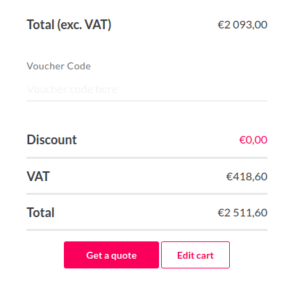
  3. Add the number of desired licenses to your shopping cart and click “Continue to Billing”
  4. Add a shipping address, or select one if you already created one.
  5.  In the next page, click “Get a quote”:
    Payment details
  6. A quote will be automatically generated in PDF format.

Genymotion Device Image for Cloud providers
- Private Offer -

Genymotion Self-hosted (on-premises)
- Contact Us -

Genymotion SaaS
- Increase Maximum Simultaneous devices -

Genymotion SaaS Enterprise Plan
- Get a Quote -

Genymotion SaaS Premium Plan
- Get a Quote -

Personal Use - Free

Genymotion Desktop for personal use is not suitable for trial or POC: you will not get any assistance and some features will be disabled. If you have already selected “personal use” and wish to get a trial license, please contact our Sales at [email protected].

Technical support is not available with Genymotion Desktop free edition for personal use. For more details, please refer to Genymotion conditions of use (Personal Use).

The following features are not available in personal use mode:

Follow these steps to get Genymotion Desktop and activate personal use mode:

  1. Go to the Download page and get the latest version for your system.
  2. Follow the instructions from Genymotion Desktop quickstart guide to install Genymotion Desktop.
  3. Launch Genymotion and click CREATE to create an account. You should receive an activation email within an hour. If not, make sure to check your spam.
  4. After activating your account, return to Genymotion and log in with your credentials.
  5. Select personal use when prompted.
  6. Read Genymotion Desktop quickstart guide carefully to setup Genymotion for your needs.

Contact Sales
- Premium Plan -

Select a Cloud provider Marketplace

For AI agents: AI-ready version of this site